
Welcome to the Active-Pro Licensing Platform, a brand-new application that lets you manage your devices and licenses for Active-Pro with ease.
The platform lets you register your machines, activate and manage their licenses, and download the license files your devices might need to run. Everything is tied together by a token that keeps track of what you are entitled to use.
This guide is for end users: the people who install and run Active-Pro on their devices. It walks you through everything you can do on the platform:
-
Register your devices and identify them on the platform.
-
Activate, view, and renew the licenses attached to each device.
-
Spend and manage tokens across your machines.
-
Track your activity and keep your account up to date.
Before diving into these features, we recommend reading the Key Concepts section. It explains a few terms you will use throughout the platform.
Key Concepts
Token
A token represents one month of license validity. When a token is applied, it covers a fixed one-month period.
Example: a token used on 05/20/2026 covers your license until 06/20/2026.
Host ID
The Host ID is the unique identifier of your machine on the platform. Each device you register gets its own Host ID, which ties its license to that specific machine.
License mode
Every license runs in one of two modes, depending on your needs:
|
|
Flexible (online) |
Locked (offline) |
|---|---|---|
|
Connection |
Requires an internet connection |
Works fully offline |
|
Token control |
Full control: add and withdraw tokens |
Add only: tokens cannot be withdrawn |
|
How it is used |
Managed live from the platform |
Requires downloading a signed license file |
|
Best for |
Devices you manage regularly online |
Devices in isolated or offline environments |
Now that you are familiar with the key concepts, let’s put them into practice. This section walks through everything you can do on the platform, one action at a time. Each guide is self-contained: follow them in order for a full setup, or jump straight to the one you need.
I. Register a device
Before you can activate a license, you need to register the device that will run Active-Pro. Registering a device adds it to the platform and links its license to that specific machine through a unique Host ID.
-
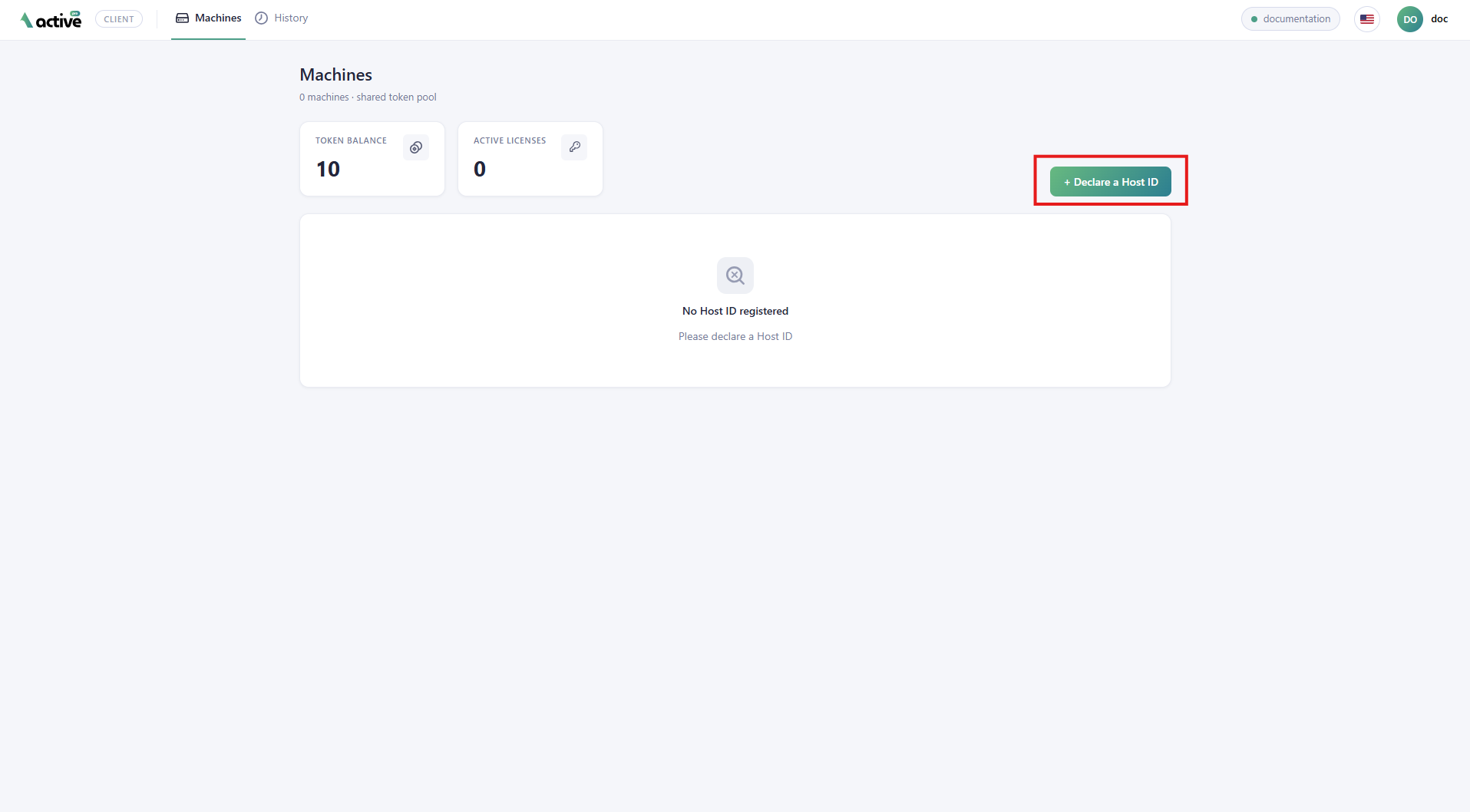
From the main menu, you will see all your devices.
-
Click “Declare a Host ID”.
A popup will appear. You will need to enter the Host ID and a Description. You will be able to change the Description later, but not the Host ID.
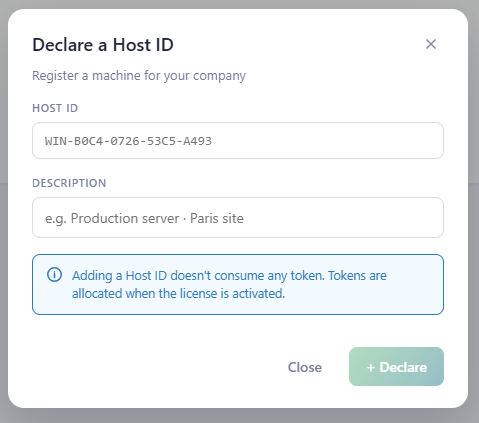
The Description is free text. It should be a recognizable name, such as the machine’s location or purpose, so you can easily find it later.
The Host ID only accepts hexadecimal characters: [0-9] and [A-F].
-
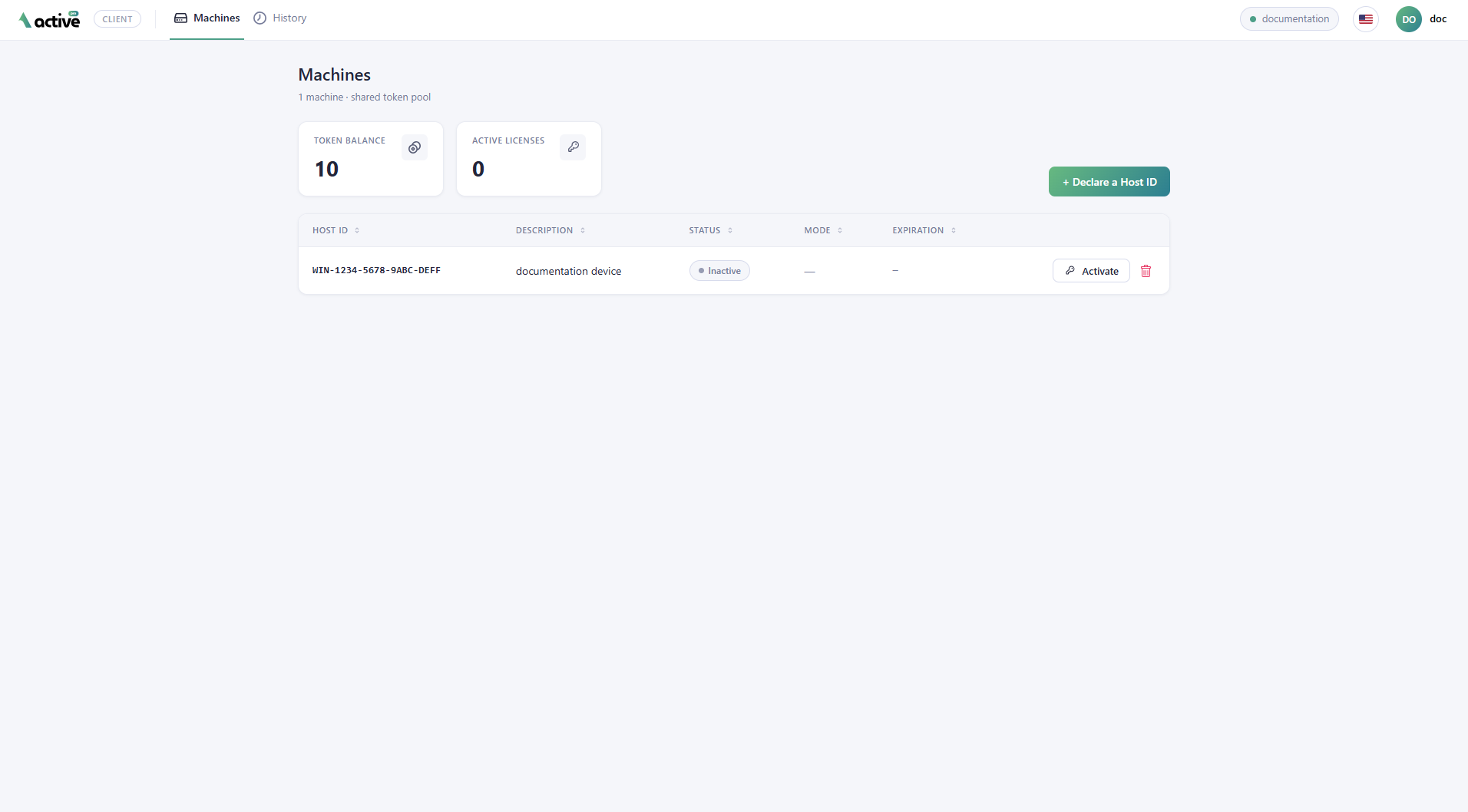
Your device now appears in the list.
II. Activate a license
Once your device is registered, you need to activate its license before it can be used with Active-Pro. Activating a license turns it into a live, valid license.
Activation consumes 1 token and gives your license 1 month of validity.
From here, you only need to activate the license.

Your license is now active, with an expiration date set one month ahead.
Keep in mind that if you do not have any tokens available, activation is not possible.
III. Add tokens to a device
After a license is activated, you can extend its validity by adding tokens. Each token adds one month to the license’s expiration date.
Before adding tokens, make sure the device has an active license and that you have tokens available in your account.
-
From the main menu, open the device you want to extend.
-
Enter the number of tokens you want to apply.
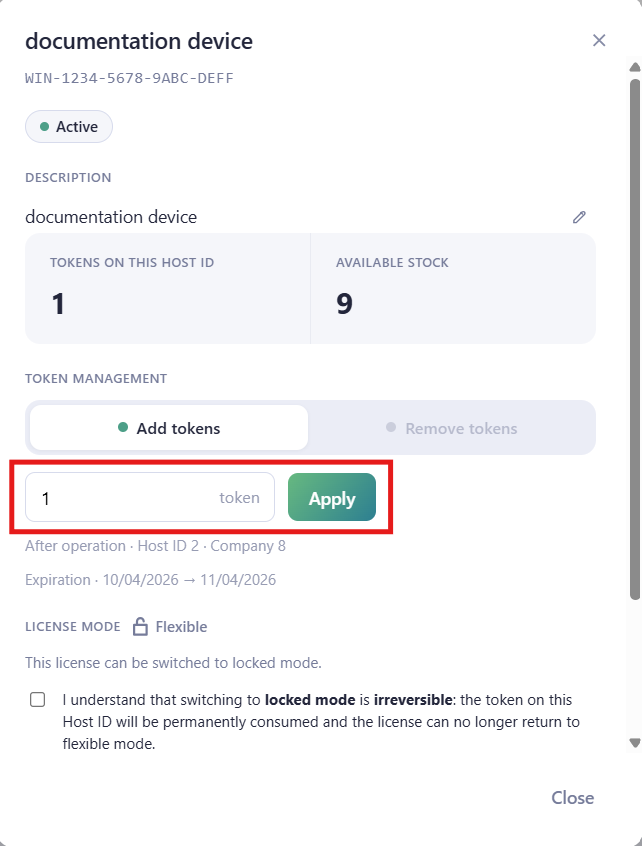
The license’s expiration date moves forward by one month per token.
Keep in mind that your tokens come from your company’s balance, which is assigned by your distributor. If you run out of tokens, contact your distributor to request more.
IV. Choose a license mode (Flexible or Locked)
By default, your license runs in Flexible mode, with full control over your tokens. If your device runs in an offline environment, you can switch it to Locked mode instead. See the Key Concepts section for the full difference between the two modes.
Switching to Locked mode is irreversible. Once the license is locked, you cannot switch it back to Flexible mode, you can no longer withdraw tokens from the device, and you will manage its license through a downloaded license file.
-
From the main menu, open the device you want to lock.
-
Confirm the warning that switching to Locked mode is irreversible. You will then be able to click Switch to locked mode.
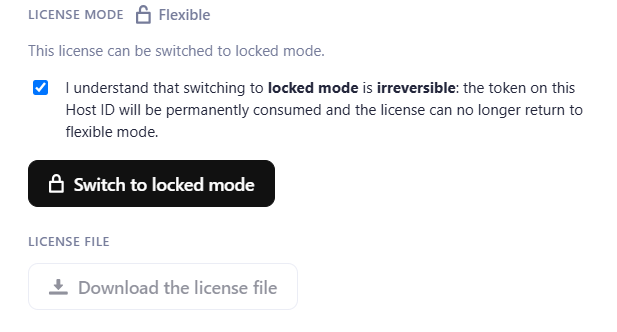
Your license is now in Locked mode.
-
The next step is to download the license file so the device can run offline. Place this file in “User Home > shared > activedb”.
.png?cb=12feae8abaa26b53985e71273606d389)
V. Withdraw tokens from a device
If a device no longer needs all its tokens, you can withdraw some of them while it is in Flexible mode. Withdrawing is the reverse of adding: each token you take back reduces the license’s validity by one month, and the tokens return to your balance for use elsewhere.
This is only possible on a Flexible license. Once a device is in Locked mode, its tokens can no longer be withdrawn.
-
From the main menu, open the device you want to withdraw tokens from.
-
Click “Remove tokens” on the popup, then enter the number of tokens you want to take back.
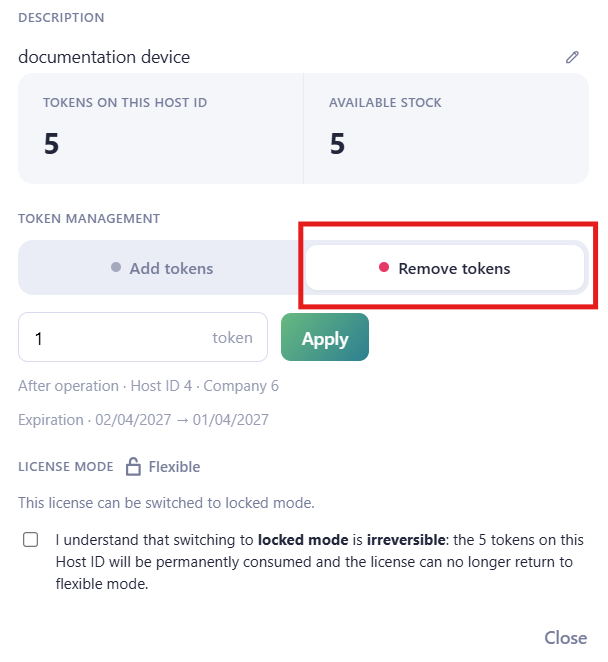
Note that you cannot withdraw the current month. Every token withdrawn goes back to your available balance and can be applied to another device.
VI. Rename or delete a device
You can update a device’s description at any time, or remove a device you no longer use.
Rename
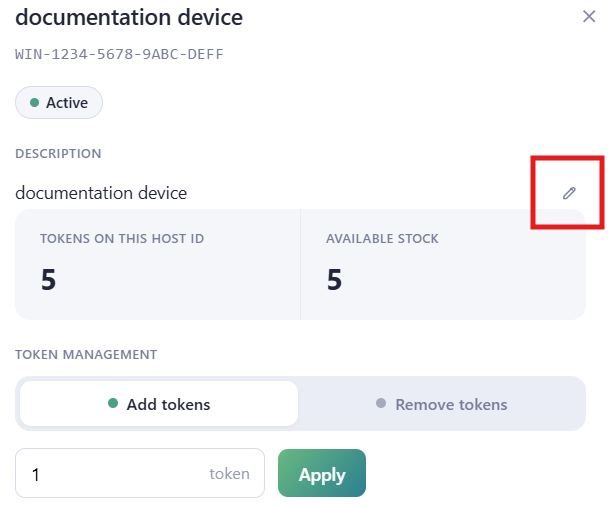
From the main menu, open the device you want to rename. Then click the pen icon to rename the device.
Delete
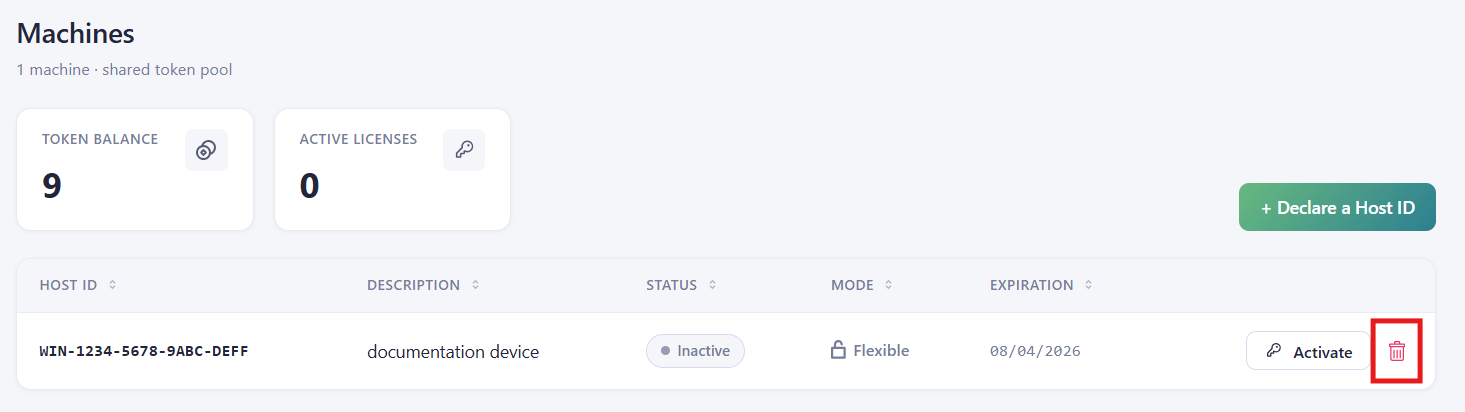
You will have to wait until your license expires. Then click the bin icon to delete it.
VII. Manage your profile settings
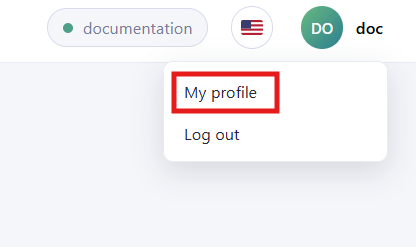
You can view and update your personal account settings at any time from your profile.
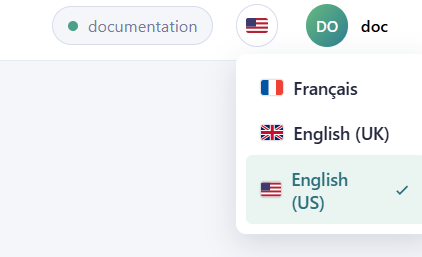
You can change the language and date format by choosing one of the available languages.
You can also change your email address from your profile.
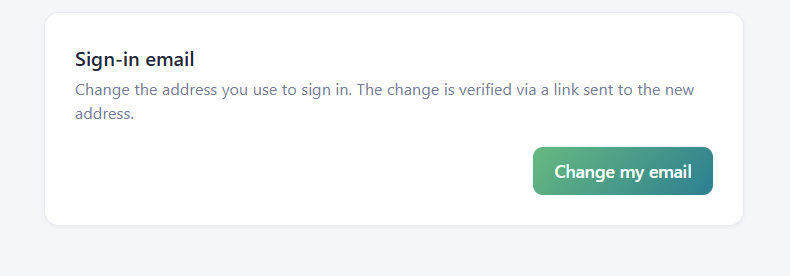
You can change your email after receiving a confirmation link by email.
You will have to sign in again with your new address.
VIII. Track your activity
The platform keeps a history of actions taken on your account, so you can review what happened and when.
-
Open the History section from the main menu. You will see a list of recent actions, for example: devices registered, licenses activated, or tokens added and withdrawn.

You will find filters for each action and for a specific period of time.
If you need a record outside the platform, you can export your activity to a CSV file by clicking “Export to CSV”. The file contains the same activity shown on screen and can be opened in any spreadsheet application.