
In this step you will setup the AwsIoTconnector to connect Niagara to AWS.
Set up the connector
-
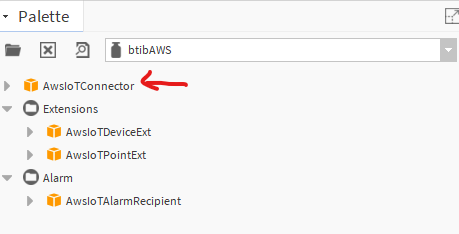
Open the btibAWS palette.
-
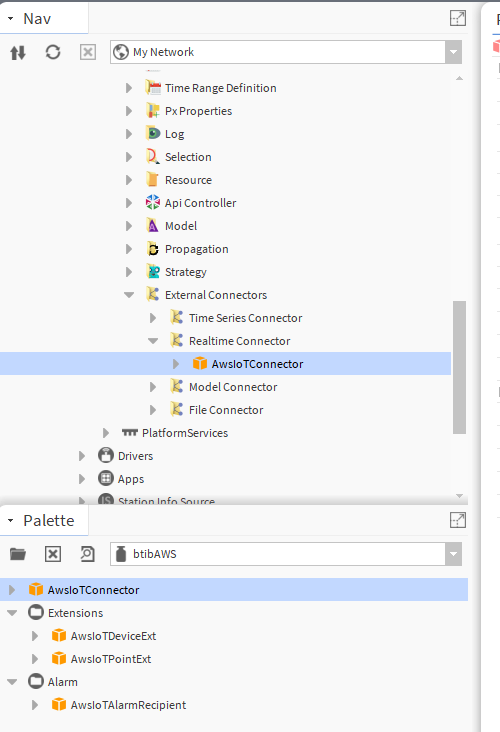
Drag and drop the connector in the btibService→ ExternalConnectors → RealtimeConnectors folder.
-
Configure your connector.
-
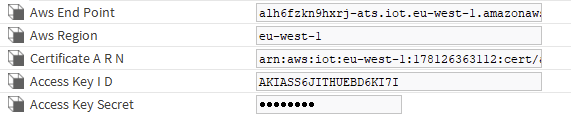
Fill-in the AWS Endpoint
-
Fill-in the AWS region
-
Fill-in the ARN certificate you saved before
-
From the credentials csv file you can get your access key and secret.
-
Setup the authentication.
AsymmetricKeyAuthentication
If inStep 1 Set up AWS IoT, you created a certificate from scratch,
-
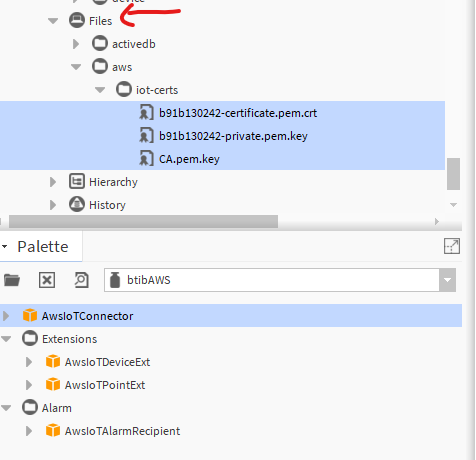
Copy the certificate, the private and the CA certificate to your station files.
-
Drag and drop an AsymmetricKeyAuthentication from the btibAWS palette in the connector’s Authentication Schemes and target the file added previously.
-
Certificate Authority Certificate → Verisign File
-
Client Certificate → file with the pem.crt extension
-
Client Private Key → file with the pem.key extension
-

ClientCertificateAuthentication
If inStep 1 Set up AWS IoT, you imported your certificate from your workbench
Drag and drop a ClientCertificateAuthentication from the btibAWS palette in the connector’s Authentication Schemes and select your certificate

Device setup
Enable your connector. It will try to ping AWS. If everything was done correctly, it will display ok.
Now the connector is ready, you can configure your devices and points.
To do so:
-
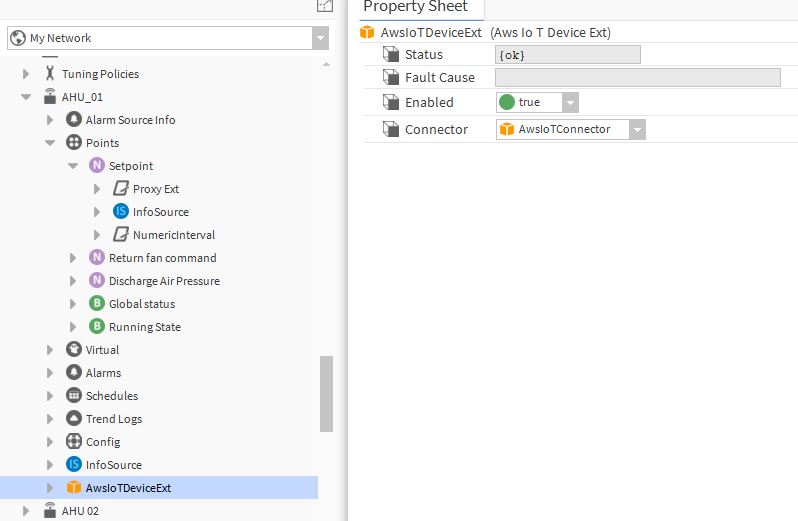
Go to Drivers → <your network> → <your device> and drag and drop the Aws IoT Device Ext to any point container (it may be a folder).
-
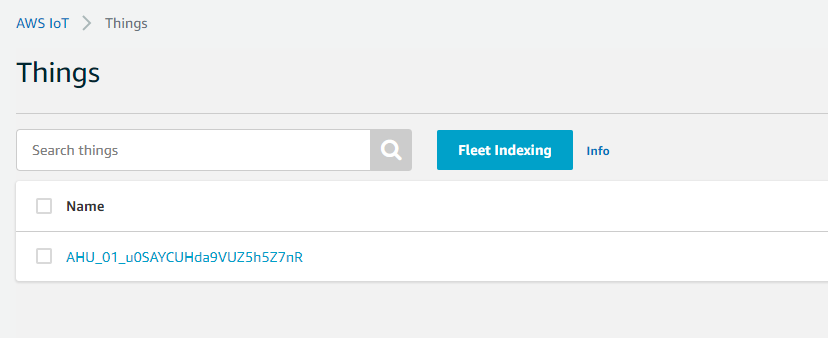
You should see your device on the AWS console.
-
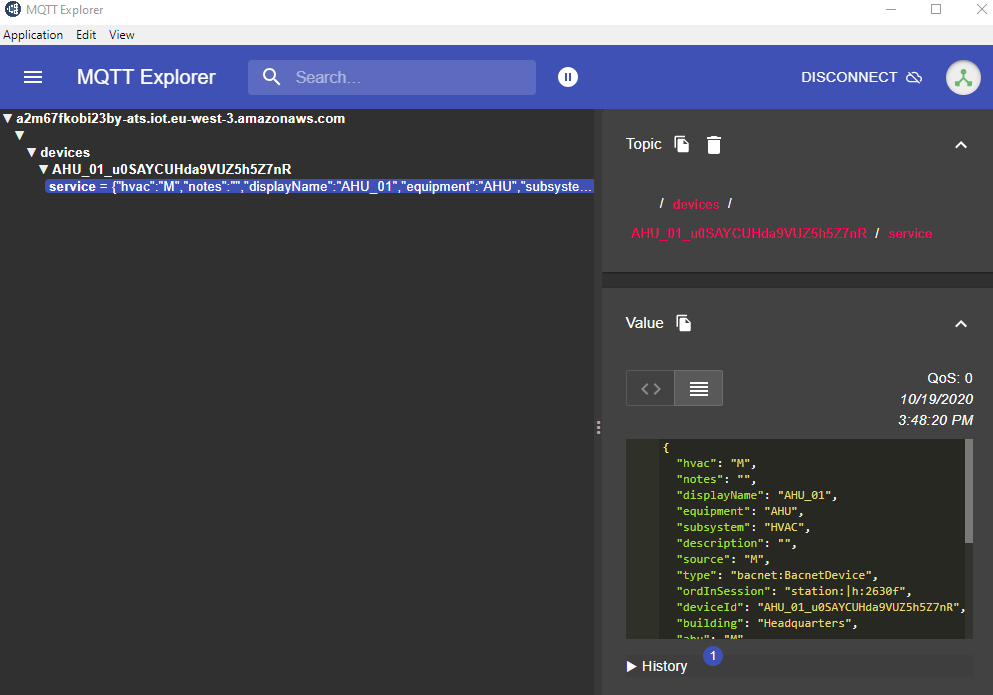
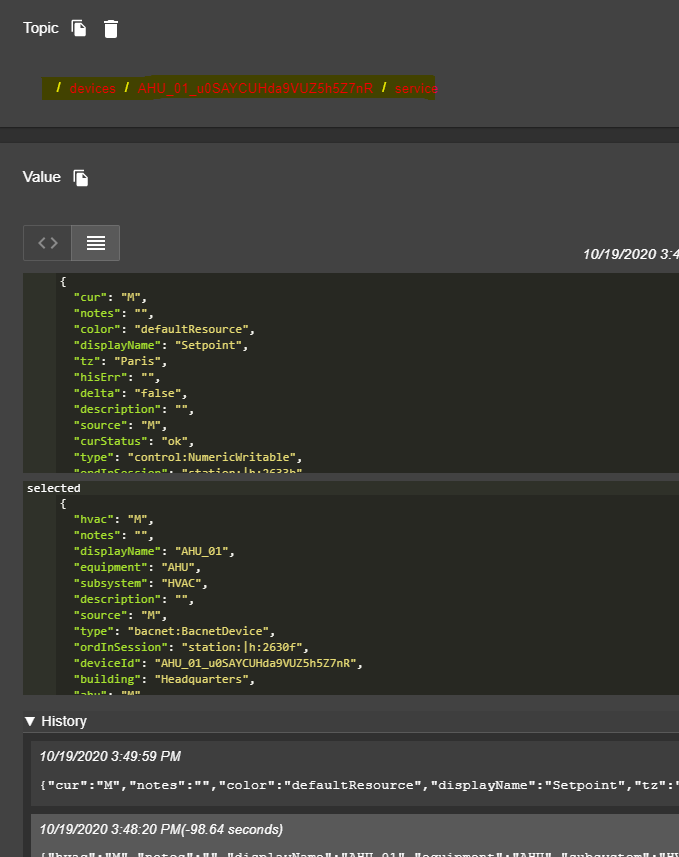
Use any mqtt client to inspect messages, you should see tags published under the service topic corresponding to the device
Point Setup
-
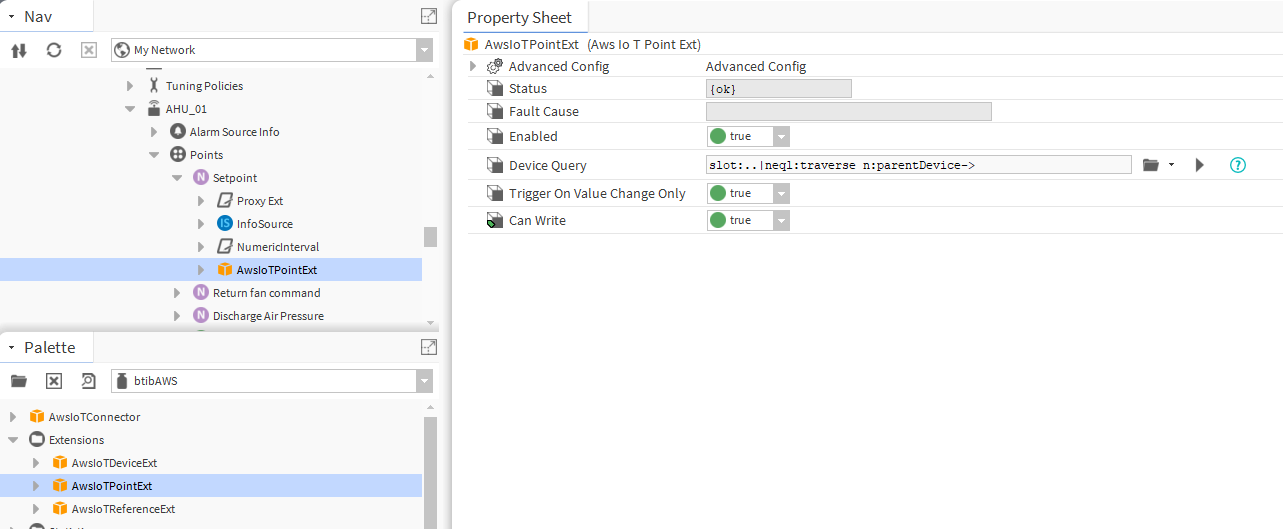
Now drag and drop the Aws IoT Point Ext in your point.
-
On your mqtt client you should see the tags for the point published on the service topic and a message on the events topic
Reference Setup
-
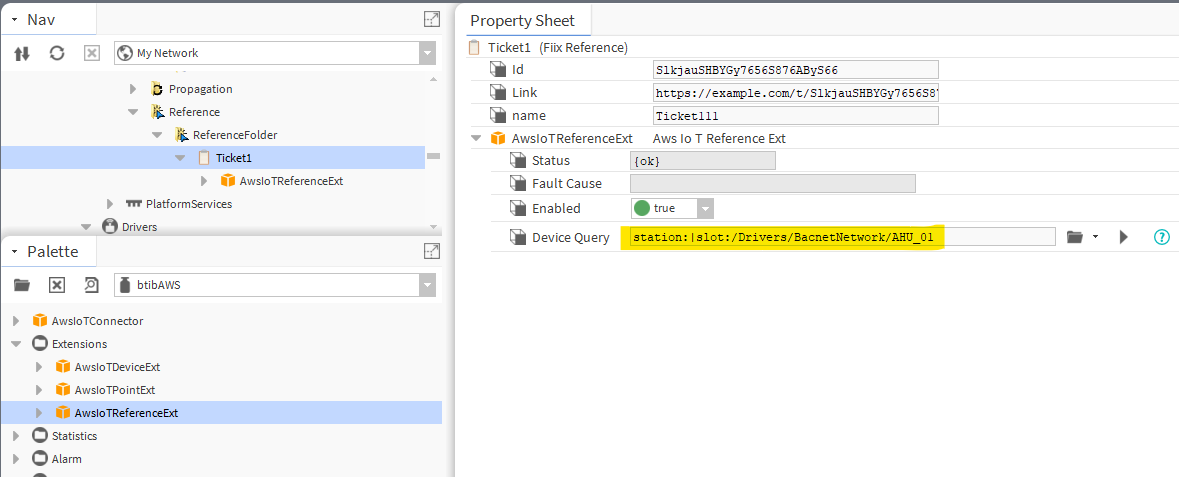
Drag and drop the reference extension to the reference component. And sepecify the query for the device to connect to.
-
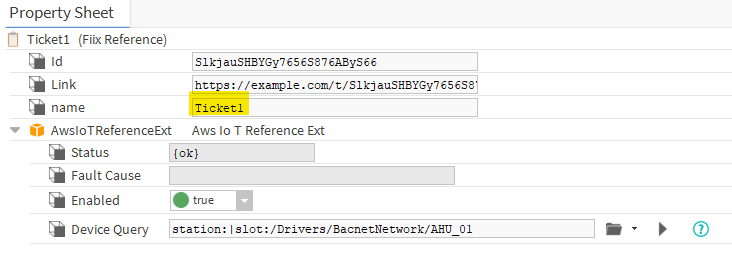
change any reference property.
-
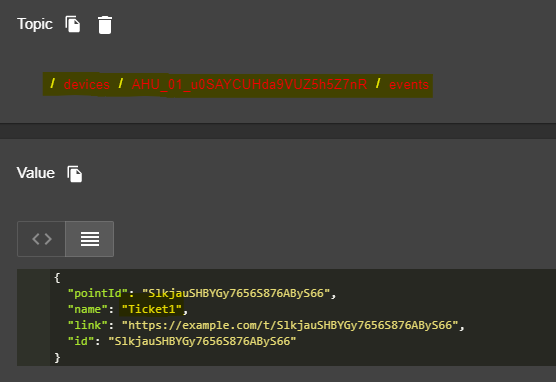
And you should see the event.
Next Step
Step 3 Send messages to AWS from Niagara