
Now we have been recorded a macro, let's use it to batch modify similar devices.
Play a Macro from a manual selection
-
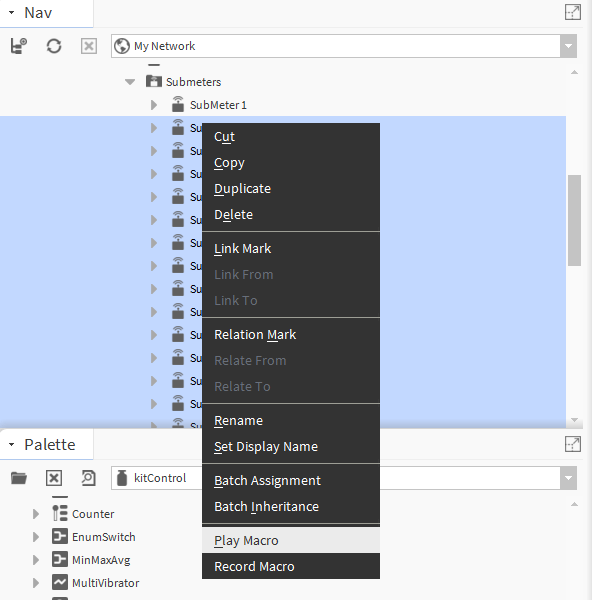
Select components in the nav tree.Then click right and select Play Macro
-
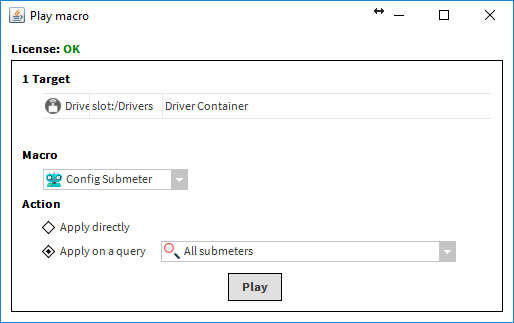
The list of components you wish to play the macro will appear.. Select the macro you just recorded in the list. Hit Play.
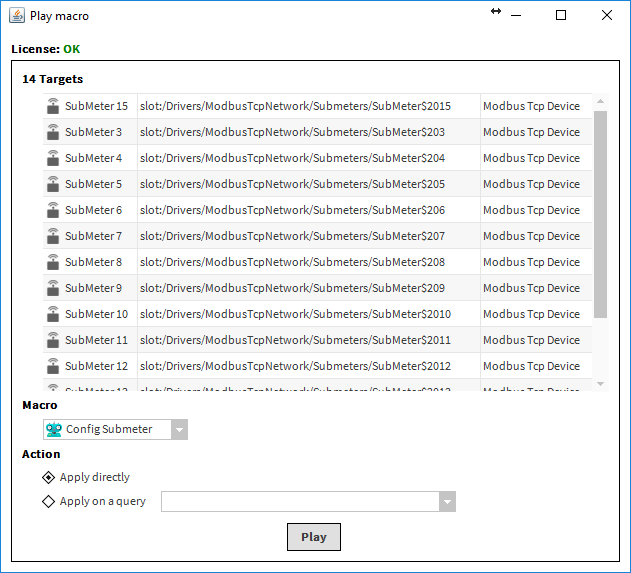
There were two choices available in the popup:
-
Action { Apply directly ; Apply on a query }
[Advanced] Play a macro from a Selection
Selecting components to play a macro can be time consuming if they don't belong to the same parent or if you need to filter them by a criteria. Example: select only components from type A or select only the first device in every device folder.
This is precisely the purpose of "Selections". They are based on bql or neql syntax.
Let's create a new . Open tools and select Active Pro Macro Manager.
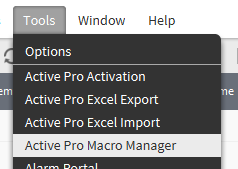
Notice the macro you just recorded before. This is where every macro is saved. We'll be back there in the next step.

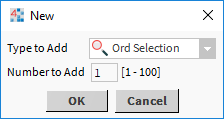
Open the tab called "Selections". Click on New at the bottom to create a new Selection. Then hit ok.
Give a name like "All submeters"
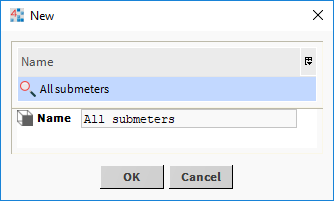
Since the Selections and the macros are in in a bog file, managers are not updating automatically. You need to refresh the view when you add or delete a component.
The Selection will then appear
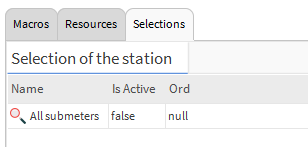
Click right on the Selection, select views then Ax Property Sheet. Fill-in the query like for example:
station:|slot:|bql:select * from driver:Device where displayName like '%SubMeter%'
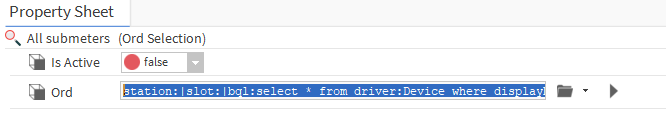
You can try your query by copy-pasting it to the station (remember this is an offline bog, so you can't play it directly).
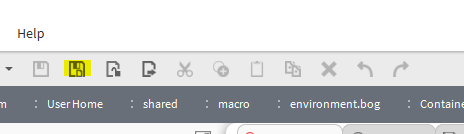
When you're done, don't forget to save the bog file at the top.
Now, go back to the station, click-right anywhere and select "PlayMacro". But this time select "Apply on a query", and choose the Selection you've just created. Hit play.
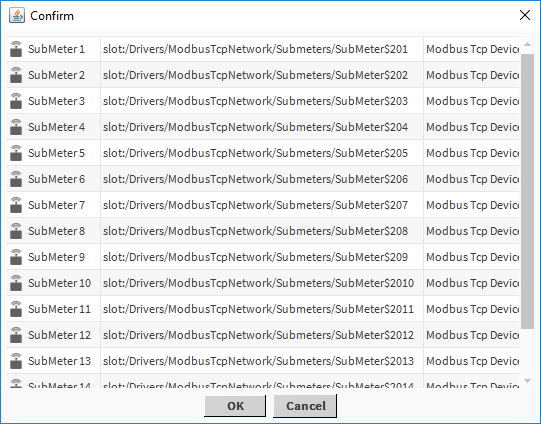
The popup will show you the list of components selected by the query. Confirm.
See the result.
Use of the console
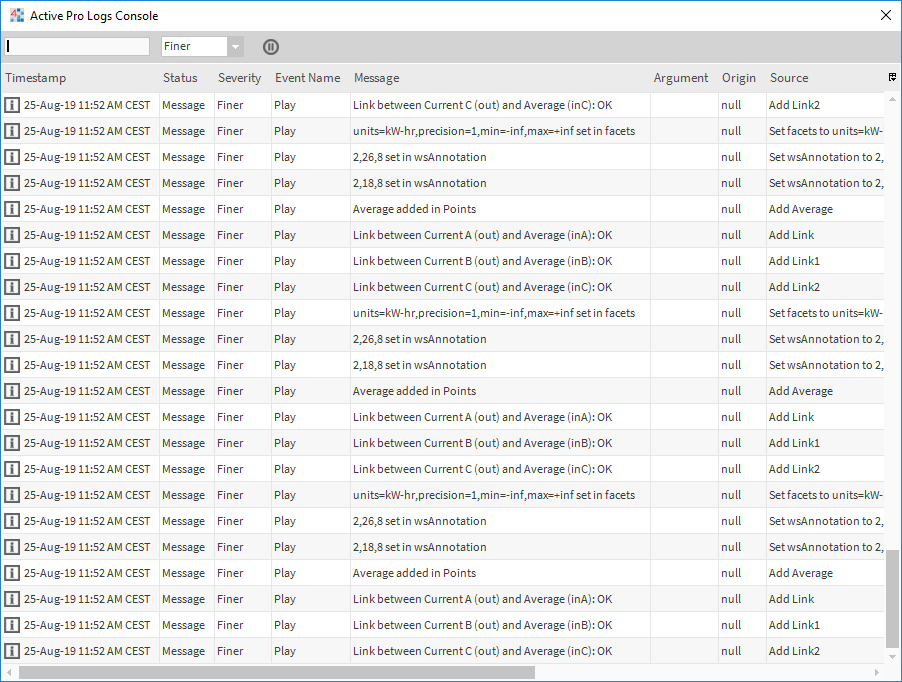
You probably noticed, the log console was opened. You can see in the console every operation being done by the macro and track for errors.
Next Step