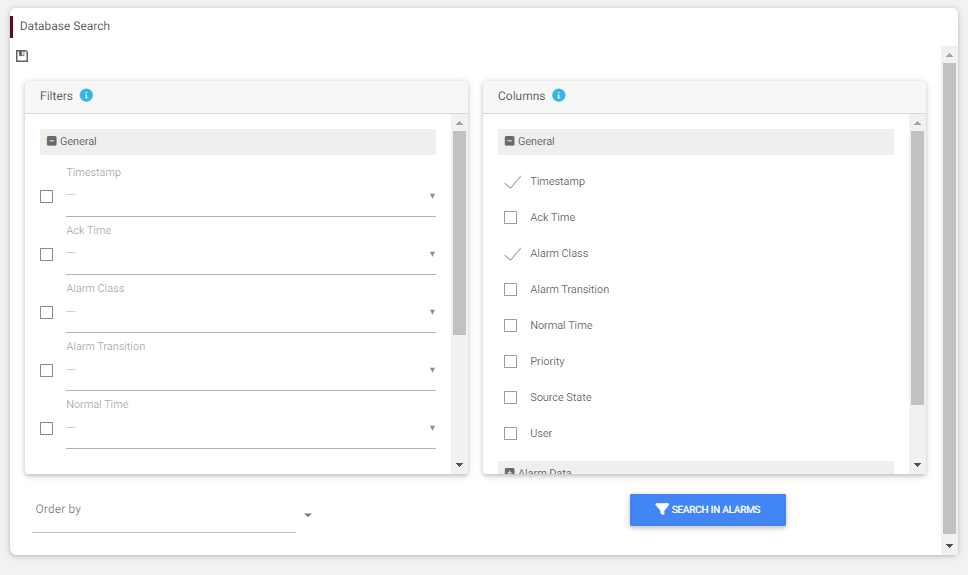
The AlarmTableBuilderView is used to parameter which alarm you want to look up and what to display in a table.
The view is organized in two main panels:
-
The left part is where you filter what you want to retrieve from the database. Ex: Only the alarms of the current week, only the ones from the HVAC alarm class, only the ones with a specific priority etc.
-
The right part is where you choose what to display: the columns (a row corresponds to one alarm record). Timestamp, AlarmClass and SourceName are default selection, the can't be removed. You might want to see the normal time, the priority , the floor etc.
-
At the bottom, you can sort the table result by choosing a column in the selection field. Once done, a new field will appear and allow you to specify the sort direction (ascendant or descendant) :

The modifications you make on the view can be saved if you press save at the top right of the view. Data will be stored in the JSON file you configured here.
AlarmData
You can filter and display alarms based on all the tags you set up in the system. It's called "Alarm data" in Niagara. To add one open the AlarmData accordion and click on "Add a new alarm data field" and fill the field with the tag name. Ex: building
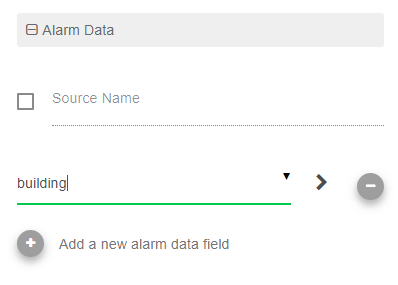
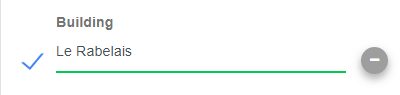
Then press the right arrow button to save it as a new field. Then set a value inside.
You can choose to display it as a column on the right panel