
Introduction
Starting with versions 51.0.0.12 and 51.1.0.15, you can no longer invoke methods on an Object that isn’t specifically a BObject. This change was implemented for security reasons, as unrestricted method access posed a risk by providing overly broad capabilities.
Objects are standard Java constructs, while BObjects are defined by Tridium.
To differentiate between them, check the ResultType slot in the SFormatTester:
-
Java Objects are typically from the
java.langpackage, such as:

-
Tridium BObjects are generally part of a
bajapackage and usually start with a 'B' prefix, such as:

This means that calls like the following will no longer work:
-
{xxx.method('toUpperCase')}, applied to a String -
{xxx.method('toLowerCase')}, applied to a String -
{xxx.method('parseInt', 16)}, applied to an Integer
While these are common examples, other methods will also be impacted.
Fix
To address this, new methods have been introduced in SFormat to replace previous ones:
Optionnal but it will make your SFormats more consistant. Do this first, then the rest.
-
Replace
toString.method('toUpperCase')andtoString.method(toUpperCase)withtoUpperCase -
Replace
toString.method('toLowerCase')andtoString.method(toLowerCase)withtoLowerCase
First
-
Replace
method('toUpperCase')andmethod(toUpperCase)withtoUpperCase -
Replace
method('toLowerCase')andmethod(toLowerCase)withtoLowerCase -
Replace
method('parseInt', 16)withparseInt(16)
Finally, you will still have some calls to method left that you cannot change
-
some will be still applied to primitives. You will have to target a BObject instead.
-
some of these calls will be applied to non black listed BObjects, you will have to add these BObjects to your whiteList
-
the others (which shouldn’t happen) are applied to black listed BObject, you will have to remove then.
Tips for Applying Changes Across Your Station
Applying changes to the bog file
If you're unsure of all the slots or Px files where these methods were used, you can update your entire station by editing the config.bog file. The config.bog file is the file storing most of your station data.
Make sure that your station is not running while you’re doing these modifications and always have a backup, a single typo in the bog file might make it unusable.
-
First, locate your station in your explorer, by default, it should be in your Daemon User Home. The path to your stations should look like this:
C:\ProgramData\Niagara<version>\<vendor>\stations.
For example if your version is 4.14 and the vendor is TridiumEMEA, the path should be the following:C:\ProgramData\Niagara4.14\TridiumEMEA -
Once you’ve located your station in the explorer, find this file in your workbench under “My File System”.
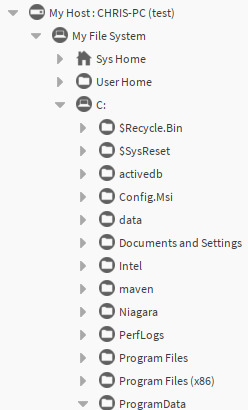
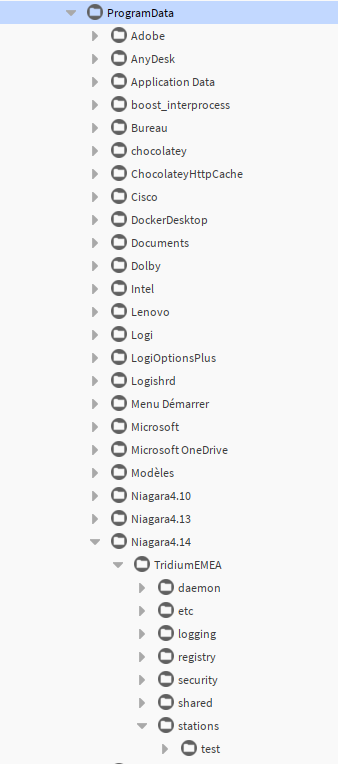
-
In your station folder (named test here), there is a config.bog file
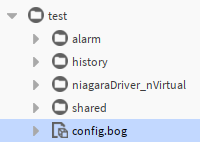
-
Right click on it and select
Views > AxTextFileEditor, your workbench should display something like this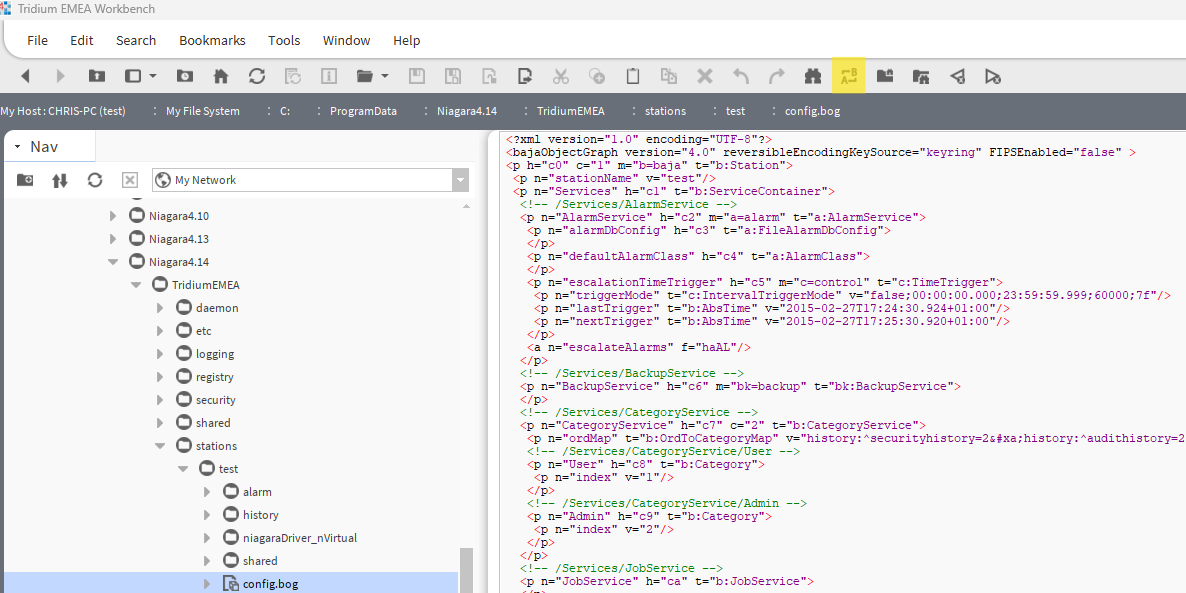
-
Select the replace tool (highlighted in the above screenshot) and follow the steps in the “Fix” section.
Proceed with caution by using the "Find Next" option to review each instance before replacing.
Updating other files
-
In the workbech, select the
Search > Replace in Filestool (or useCtrl + F6)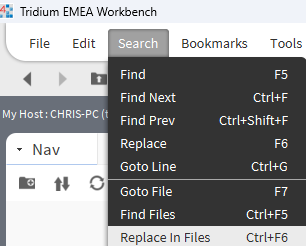
-
the following popup will appear.
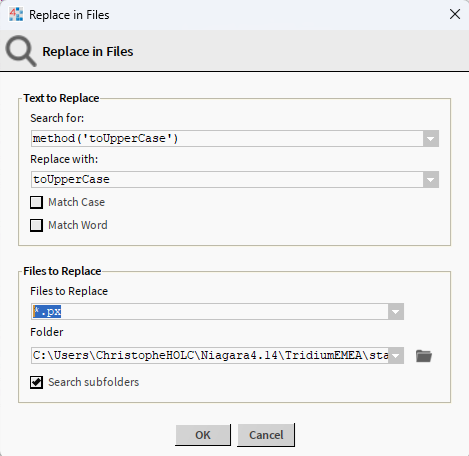
-
Specify file types (
*.pxfor PX files, you can also add*.java,*.xml, etc. separated by a whitespace, for other files). -
Set the target folder as your station folder and enable search in subfolders as needed.