
You can apply conditions on pages based on the presence of components or based on user rights. It's convenient to show a page or a card only on specific conditions. For example: We add a card for visualizing a chart on points only if there is an history extension
To enable it, go to the advanced part when editing a card or a page
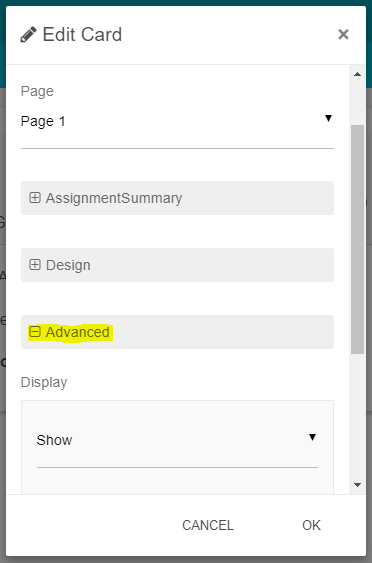
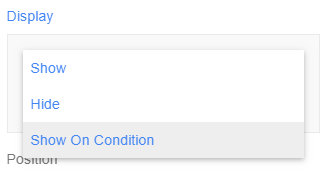
There is a display field. There are three options:
-
Show (by default): always show the element
-
Hide: always hide the element. Useful if you want keep the card on the view but not to show it (if you haven't finish it)
-
Show on condition: this is precisely what we will use here.
Applying a condition
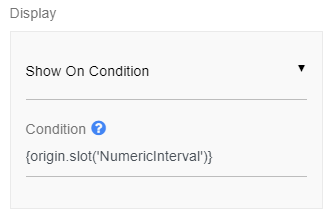
If you select Show On Condition
A new field appears and you can fill-in a syntax. If you're not familiar with , we encourage you to have a look at this page.
-
The SFormat is resolved from the component the view is agent on.
-
You can select a component or put a predicate.
The system will check two things if you select a component:
-
Does the component you're targeting exist?
-
Does the user have rights to see it?
If not, the card or page will be hidden.
Examples
Check whether a point is writable: {origin.checkType('control:IWritablePoint')}