
This article explains how to access the web interface of the RUT modem to configure its IP address, enable SMS sending, and disable the WiFi access point.
For more information, here is a link to the equipment manufacturer's documentation: https://wiki.teltonika-networks.com/view/RUT_Routers
In this example, we have chosen to use a RUT950 modem, but the steps remain the same for other RUT modems.
Accessing the modem's web interface
After setting up the antennas, SIM card, and powering the equipment, follow these steps to connect to the web interface.
- Enable the WiFi network card on your computer.
- Configure this WiFi network card to obtain the IP address and DNS server address automatically.
- From the available wireless networks, select the RUTXXX_**** wireless network.
- Enter the password found on the device label.
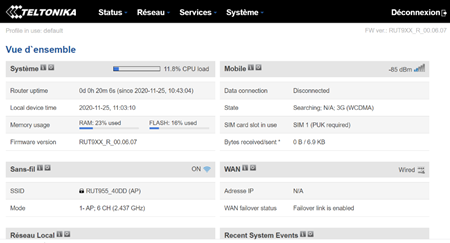
- Once connected, open a web browser and enter the VPN URL: http://192.168.1.1.
- Enter the username: admin and password: admin01 (Figure 1).
- Modify these default values (Figure 2).
Configure the IP settings
Here are the steps to modify the IP configuration of the modem.
-
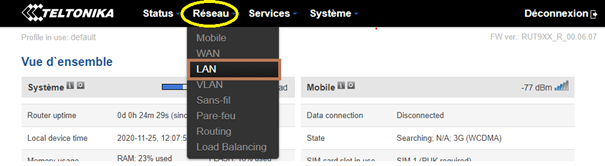
Go to the "Network" tab (yellow circle) -> "LAN" (brown square).
-
In the default configuration, modify the IP address.
-
Save the changes to complete the modification.
Disable the WiFi access point
By default, the RUT950 activates a WiFi access point on the connected network. It is possible (and desirable from a security standpoint) to disable this access point.
-
Go to the "Network" tab -> "Wireless".
-
In the "Wireless Access Points" section, disable the setting (red square).
.png?cb=c84c2b6f85c8281b0fc0293b77bbdd1c)
Enable SMS sending via HTTP request
To send SMS messages, you need to enable the API and set up a user for making HTTP requests.
-
Go to the "Service" tab -> "SMS gateway" -> "Post/Get".
-
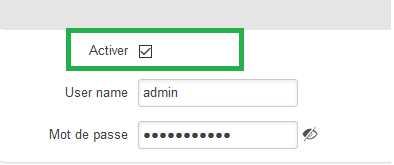
Check the "Enable" box.
-
Enter the UserName and Password.
-
Restart the modem to apply these settings.
Note: For security reasons, it is recommended to set up a different username and password than the one used for accessing the modem.
Note: Here is the link to the tutorial on how to set up alarm sending and acknowledgment via SMS: Sending and Acknowledging Alarms via SMS
If the firmware version of your device is higher than 07.13.4, then SMS sending will no longer work. Here is the procedure to fix this issue :
-
Go to the download menu on the Teltonika website: https://wiki.teltonika-networks.com/view/Downloads#FW_&_SDK_Downloads
-
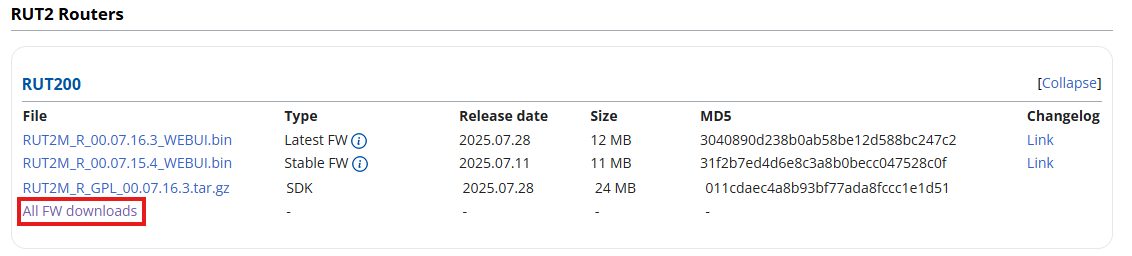
Select your RUT model (200, 950, etc.) and click on 'All FW downloads'
-
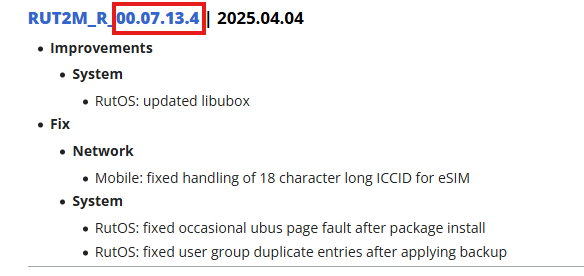
Select version 00.07.13.4
-
Log in to your device via its IP address
-
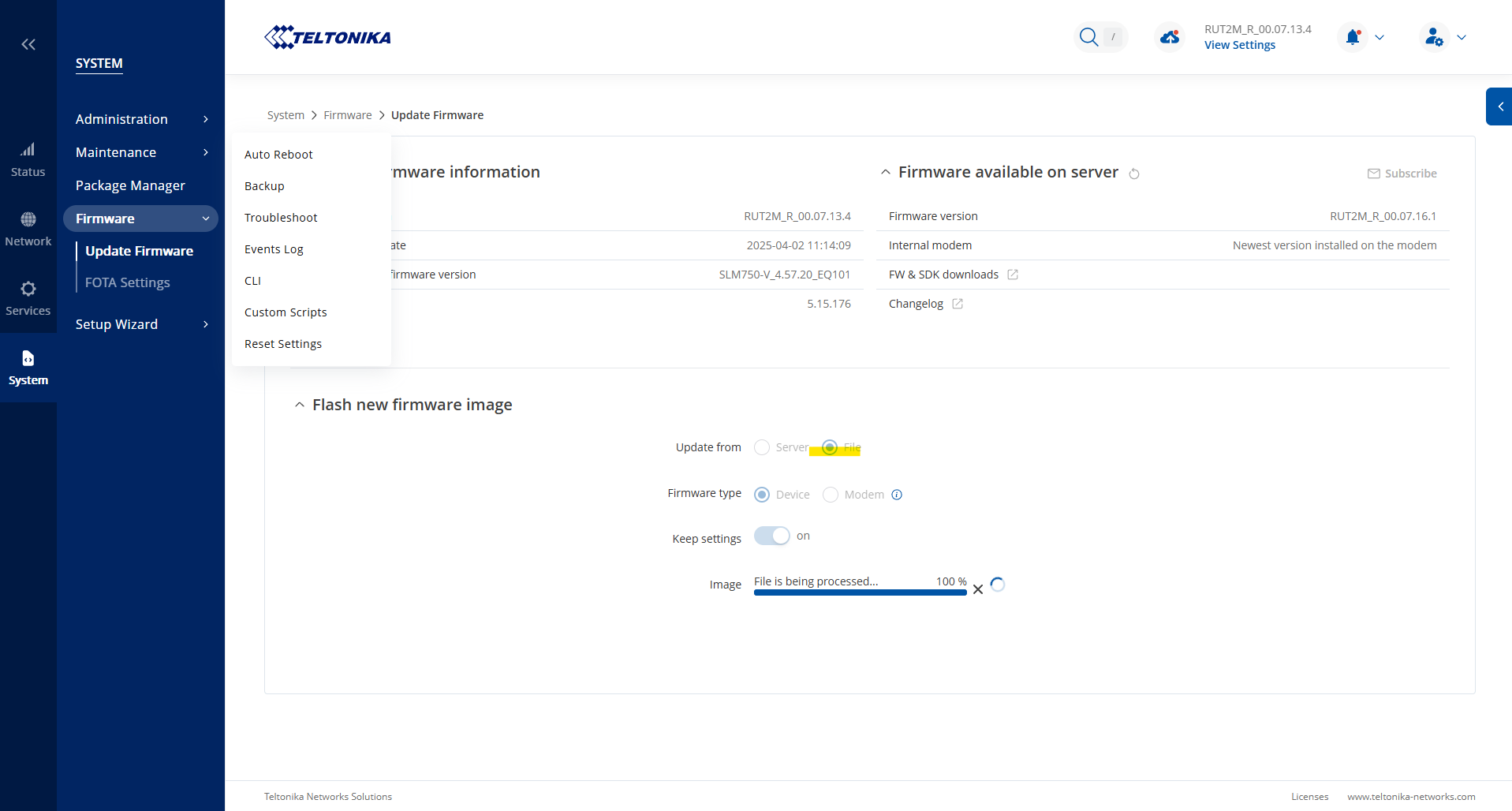
Go to the System > Firmware menu
-
Select the 'Flash new Firmware image' option and choose 'Upload from File'
-
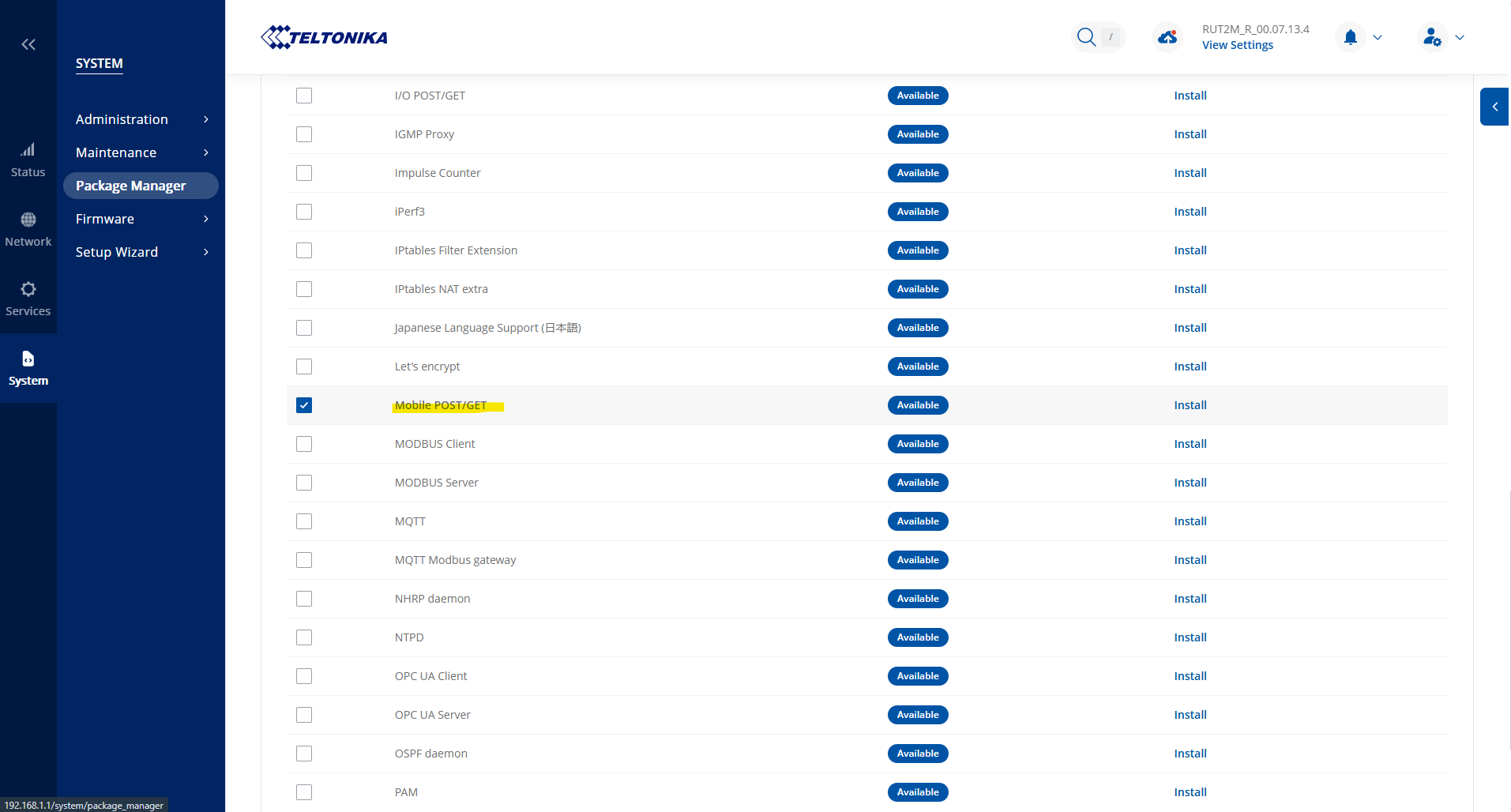
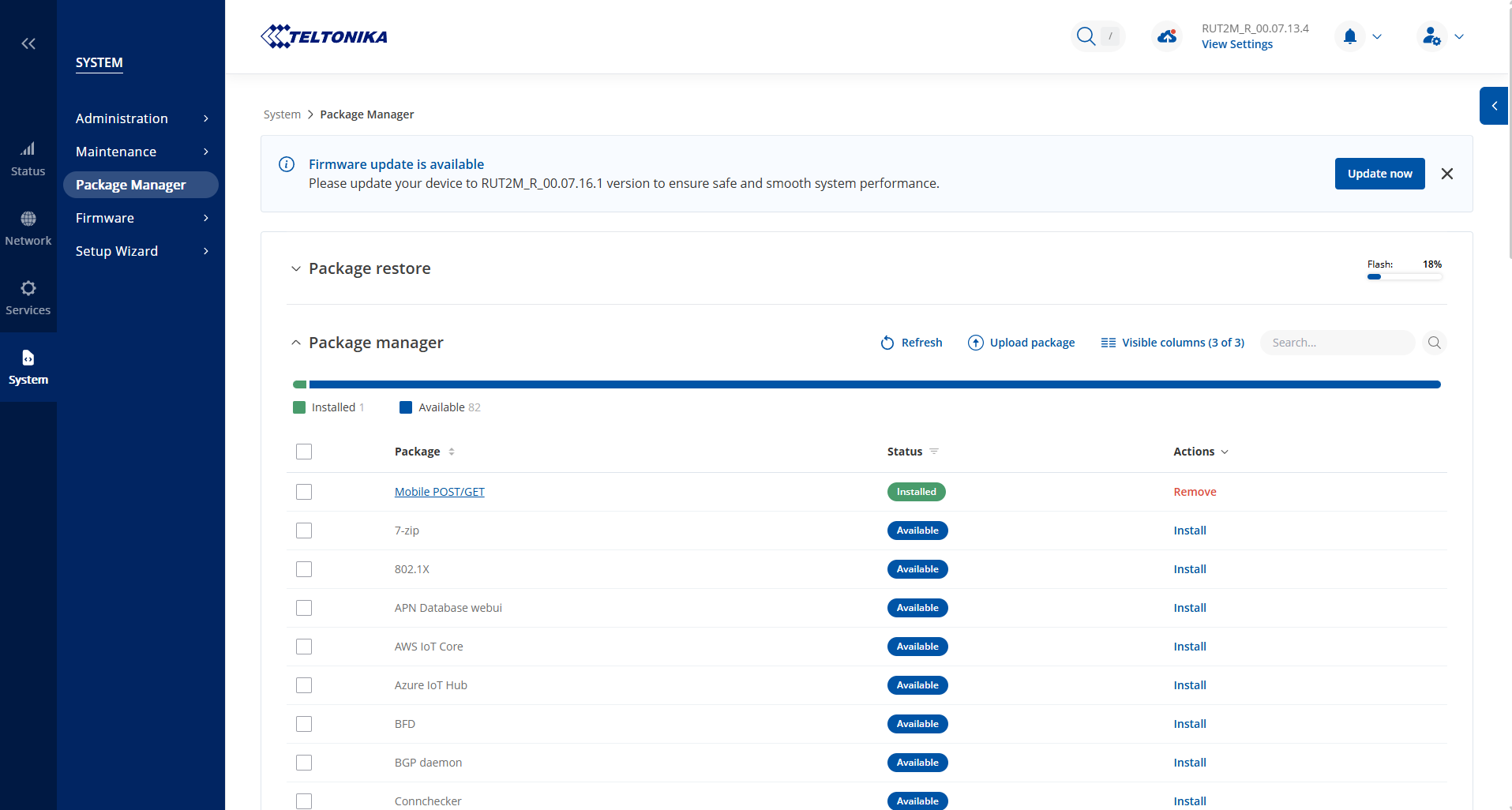
In the 'Package Manager' menu, install the POST/GET package (then reboot the device)"
-
Disable IP blocking:
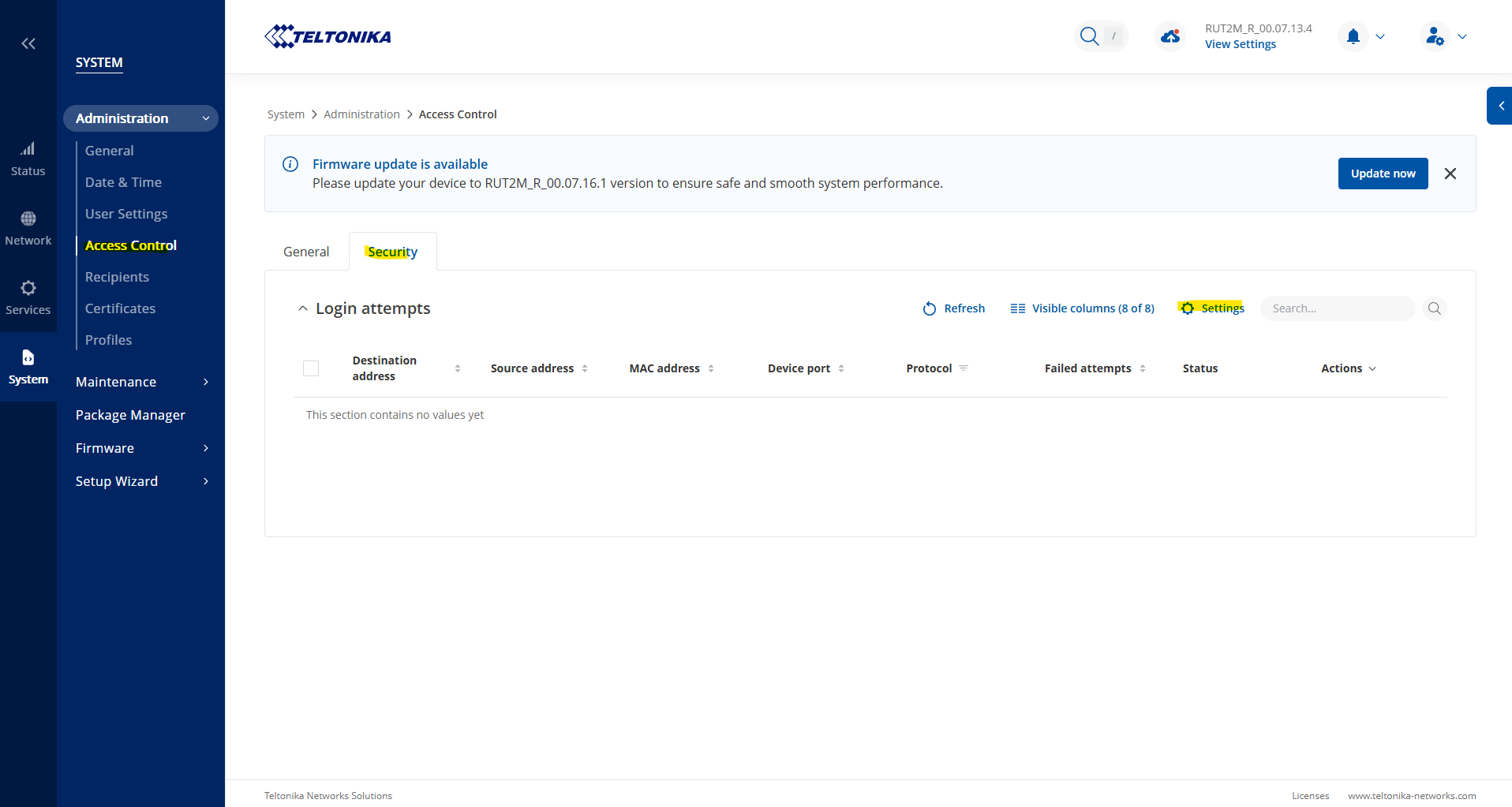
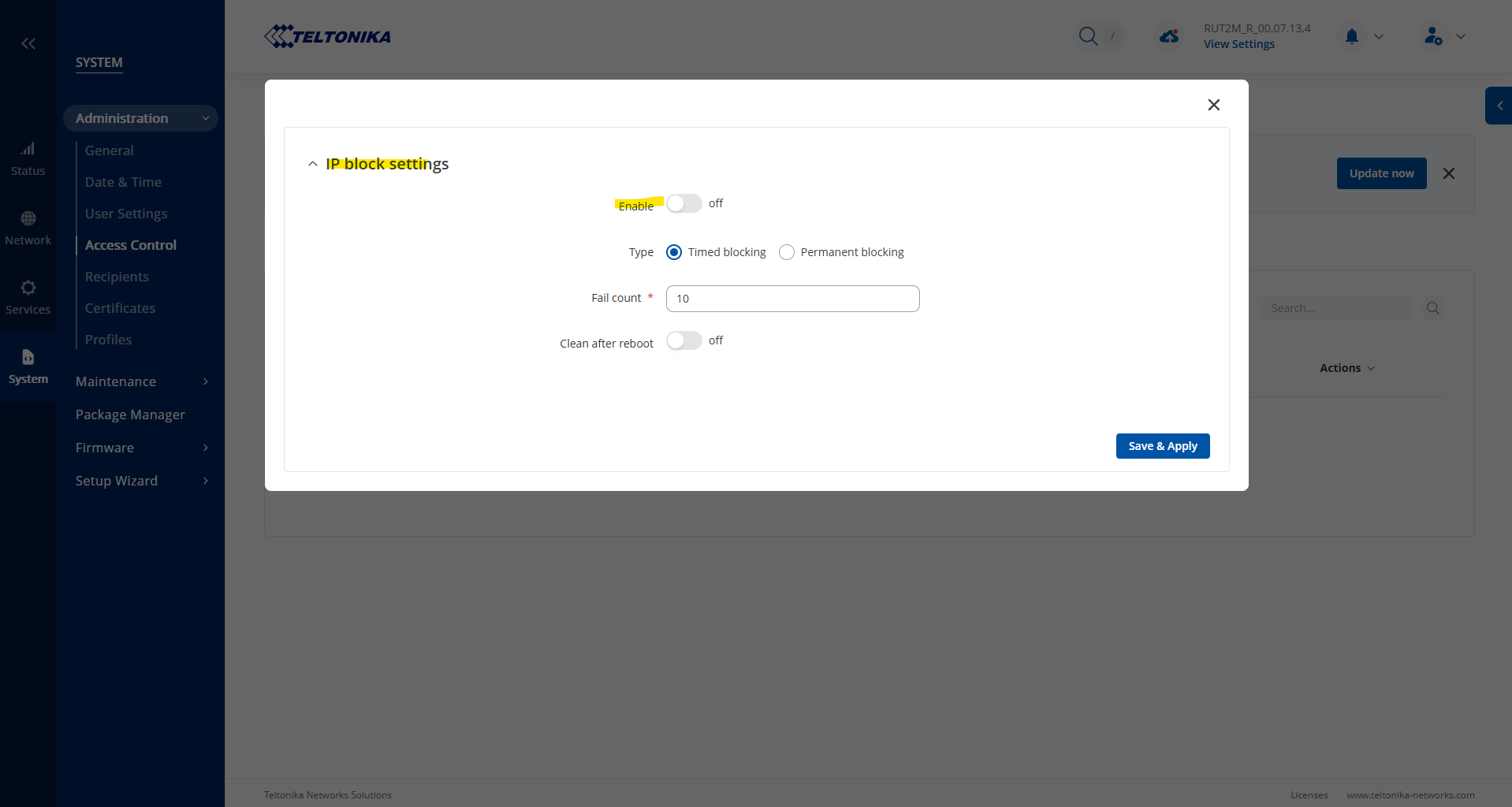
-
Enable the SMS Gateway Post/Get function:
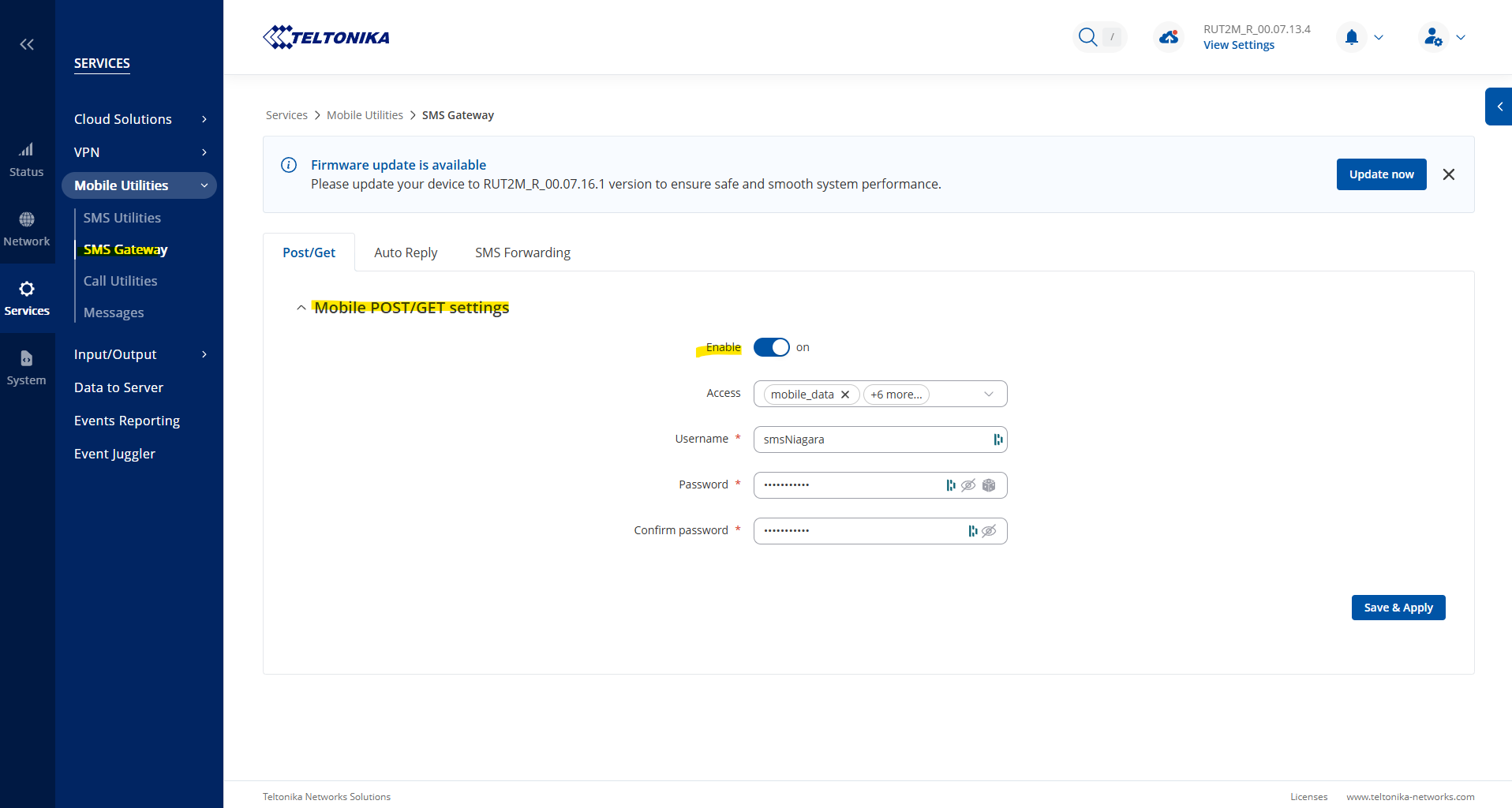
⚠️ Do not update the firmware afterwards!