
To be able to use the point test extension you need to create an Azure cloud function. To do so follow these steps:
-
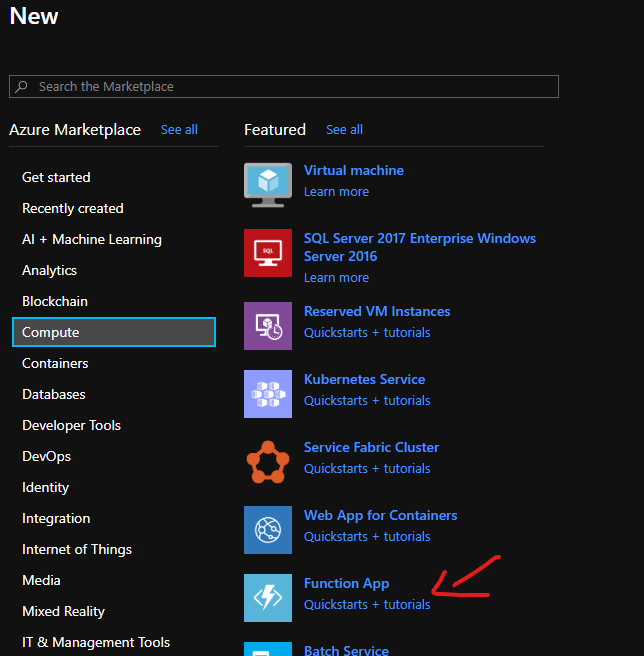
On the Azure portal. New → Compute → Function App.
-
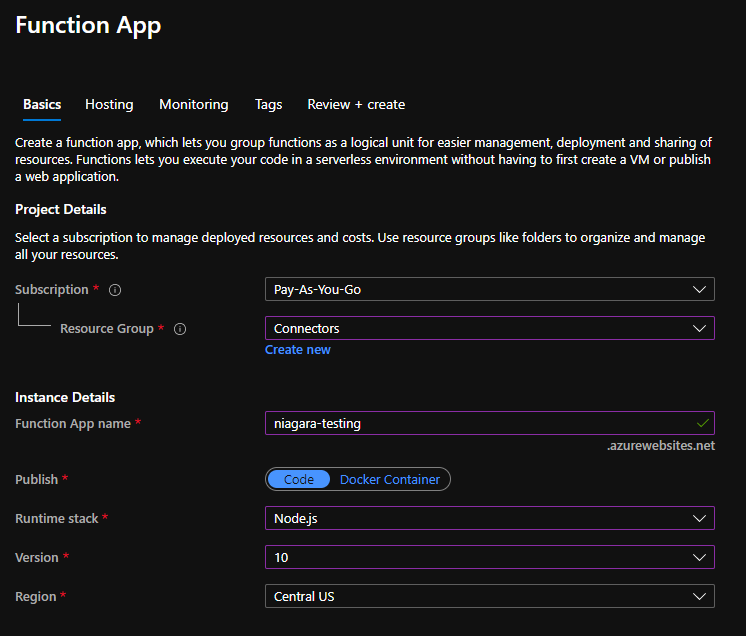
Chose or create a resource groupe, give your app a name, select node js as runtime, then hit Review + Create.
-
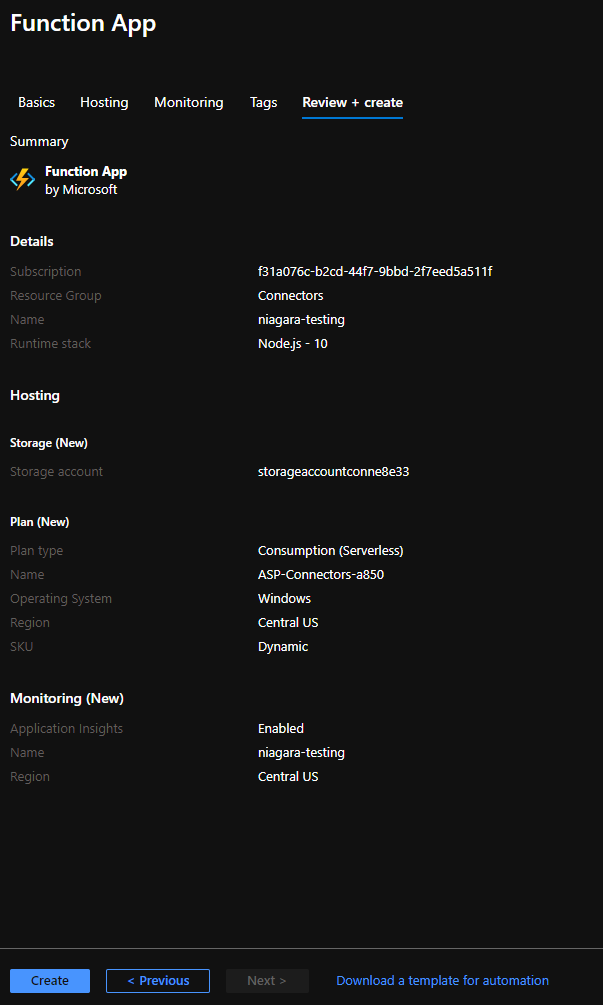
Then Create.
-
Open to the cmd on your desktop. and make sure that you have nodejs 10 installed by tiping this command:
C:\Workspace\btibdev> node --version
v10.0.0
if you getting command not found error, download the nodejs 10 from this link https://nodejs.org/en/download/releases/
-
Install the azure functions tools.
C:\Workspace\btibdev> npm install -g azure-functions-core-tools
-
Create an Azure Functions project in a subdirectory.
C:\Workspace\btibdev\niagara-testing-cf> func init
-
Choose the runtime node
-
Language typescript.
-
-
Create a new function.
C:\Workspace\btibdev\niagara-testing-cf> func new --template "Http Trigger" --name NiagaraTestCommands
-
Choose Http Trigger.
-
Give your function a name.
-
-
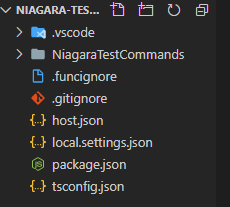
Open the project in your favorite editor you should see these files.
-
Open the package.json and add iothub dependencies.
"dependencies": {
    "azure-iot-common": "^1.12.2",
    "azure-iothub": "^1.12.2"
  },
  "devDependencies": {
    "@azure/functions": "^1.0.2-beta2",
    "@types/node": "^14.0.5",
    "typescript": "^3.3.3"
}
Then run
npm install
-
Open index.ts and add this implementation. and add your iothub connection string
JavaScriptimport { AzureFunction, Context, HttpRequest } from "@azure/functions"; import { Client } from "azure-iothub"; import { Message } from "azure-iot-common"; let connectionString ="<add your iothub connection string>"; let client = Client.fromConnectionString(connectionString); const httpTrigger: AzureFunction = async function ( context: Context, req: HttpRequest ): Promise<void> { if (req.body && req.body.deviceId) { let message = new Message(JSON.stringify(req.body)); let clientResponse = await client.send(req.body.deviceId, message); console.log("resp", JSON.stringify(clientResponse)); context.res = { // status: 200, /* Defaults to 200 */ body: JSON.stringify(clientResponse), }; } else { context.res = { status: 400, body: "Please pass a command", }; } }; export default httpTrigger;
-
Publish the function.
C:\Workspace\btibdev\niagara-testing-cf> npm run build:production


C:\Workspace\btibdev\niagara-testing-cf> func azure functionapp publish niagara-testing --force
if you get this error: Unable to connect to Azure. Make sure you have the `az` CLI or `Az.Accounts` PowerShell module installed and logged in and try again
Just install azure cli tools https://docs.microsoft.com/en-us/cli/azure/install-azure-cli-windows?view=azure-cli-latest
and type az login.
-
Now your function is deployed.
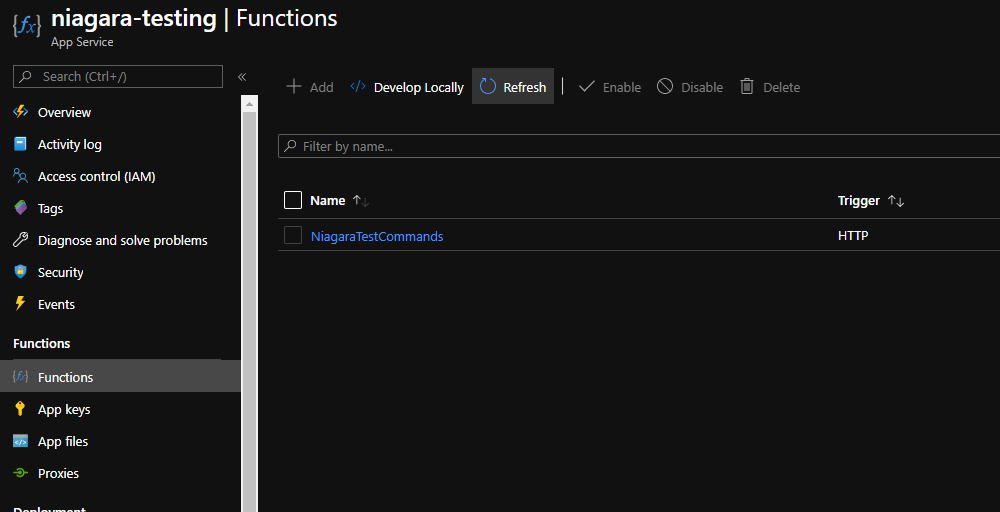
-
Click on the function and Get Function URL.
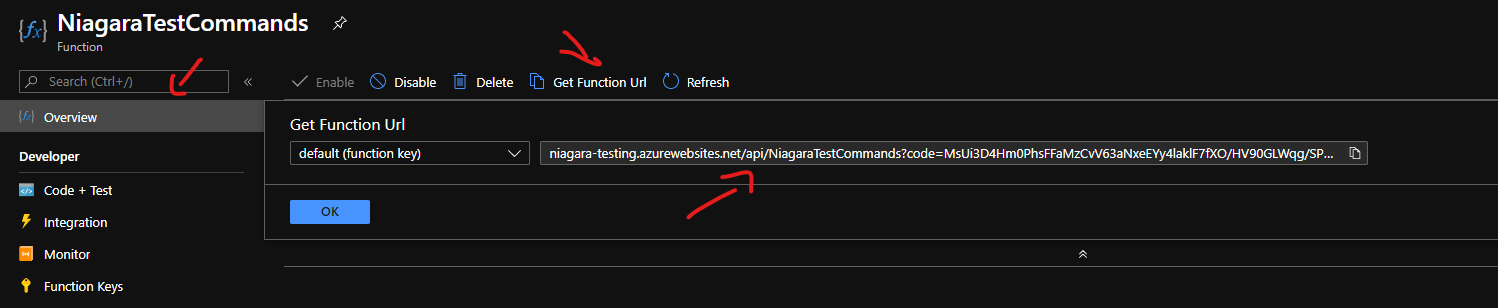
-
Copy this url and pasting on the point test extension. Don't forget to add https:// before the link.
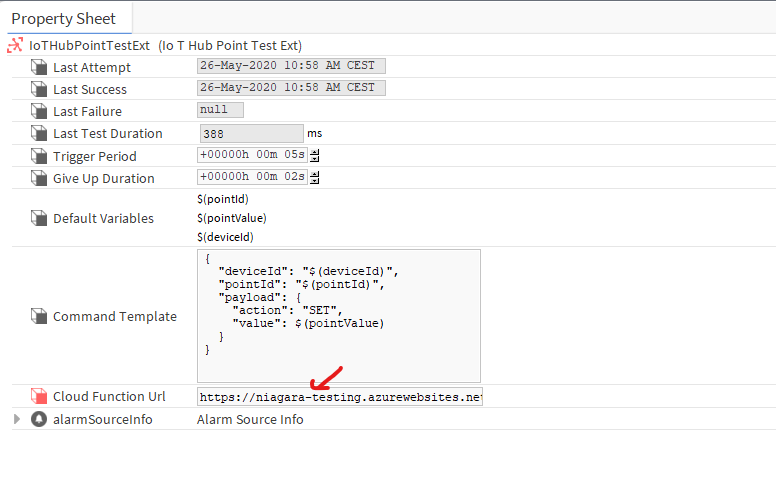
Now everything is configured successfully.
Next Step