
Let's configure Niagara as a MQTT client and start sending your first messages over MQTT.
Set up the connector
-
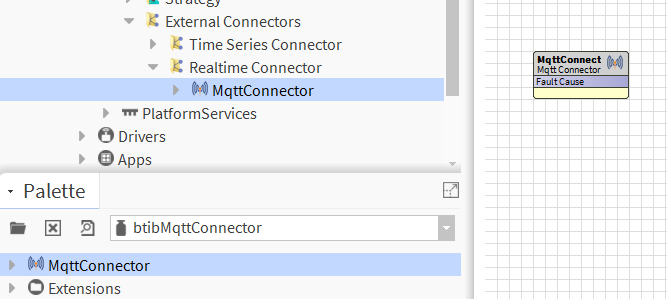
Open the palette btibMqttConnector and drag & drop the MqttConnector component inside Services > BtibService > External Connectors > Realtime Connector
-
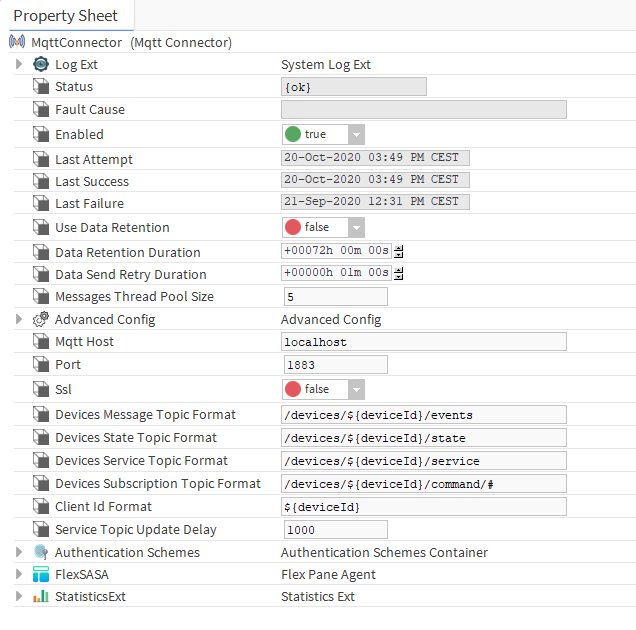
Double click on the connector and fill all the information of the server
Set up a Device
-
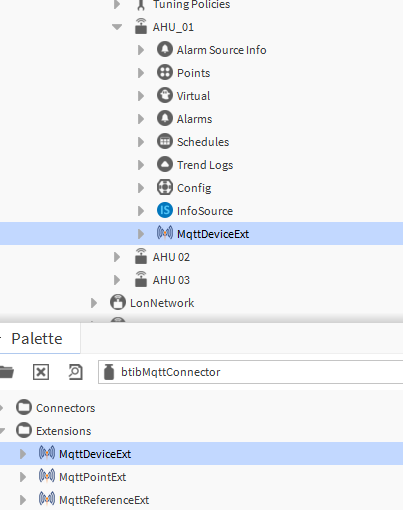
From the btibMqttConnector palette, drag and drop the MqttDeviceExt to a device or anything that represents a group of points (it might be a Node, a folder etc.)
-
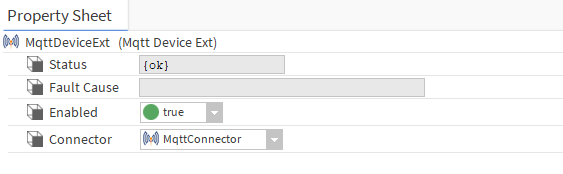
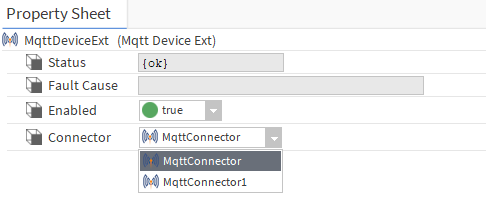
If you have only one connector the extension will pick it up automatically.
-
if you have multiple connectors, select the one in the list and hit save
-
Set up a point
-
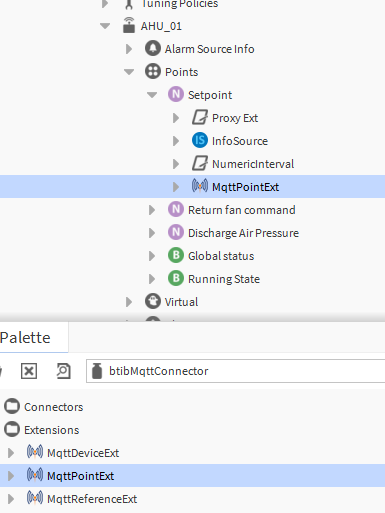
From the btibMqttConnector palette, drag and drop the MqttPointExt to a point.
-
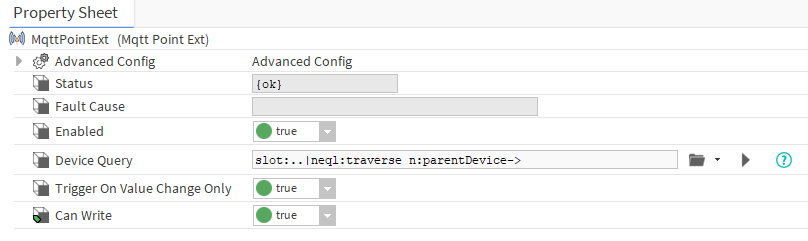
Edit the device query to point to your device which contains the Device Extension. By default, the extension will look for the parent device but you can change it to use any other component that contains a MqttDevice extension.
Setup a reference
-
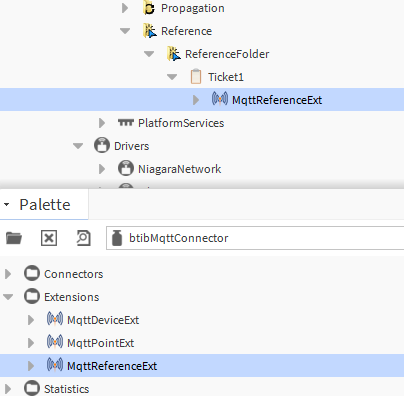
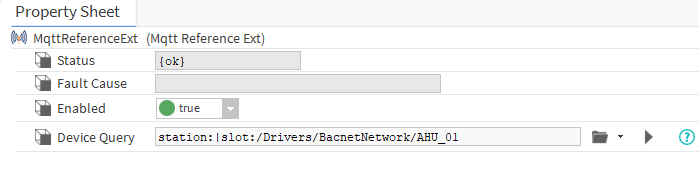
From the btibMqttConnector palette, drag and drop the MqttReferenceExt to a point.
-
Edit the device query to point to your device which contains the Device Extension.
Next step
Step 3 Send messages to MQTT broker from Niagara