
Description
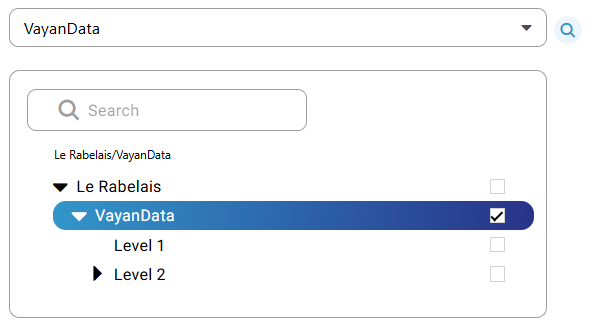
ScopeFE is a field that allows users to select a zone (such as a site, service, or equipment) within a hierarchical structure.
It is used to link an action (e.g., a ticket) to a specific location in the organization.
You can search for a zone by name, browse through hierarchy levels, and select a single item.
Depending on your permissions, some zones may be hidden or not selectable.
How It Works
When the scope is editable:
-
The field displays a dropdown arrow.
-
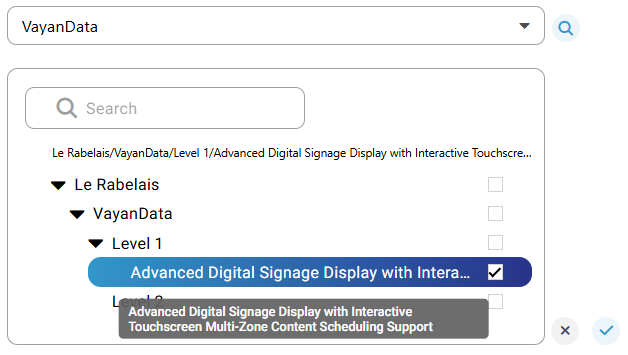
Clicking the field opens a panel with:
-
A search bar to quickly find a zone.
-
A tree view to navigate through levels.
-
Checkboxes to select only authorized zones.
-
Only one scope can be selected at a time.
If a scope is already selected, the tree will automatically expand to reveal its location, making it easier to find.
Validation Behavior
After selecting a node, it is not immediately applied to the field.
You must click the validation button (✔️) at the bottom-right of the panel to confirm the change.
If you click ❌, the change is cancelled and the previously selected node remains active.
This behavior is consistent across all FieldEditors in the interface.
Magnifying Glass Button (🔍)
To the right of the field, a magnifying glass button lets you open the view of the selected node.

-
When the page loads, this button targets the default selected node.
-
If the user selects another node and confirms it with the validation button, the magnifying glass is updated accordingly.
-
Clicking the button will open the view of the current node, using the HyperlinkMode configured.
Hyperlink Behavior
The way the node is opened depends on the ScopeHyperlinkMode defined in the TicketScopeDefinition.
This configuration is done via a List property with the following possible values:
-
Replace: opens the view in the current context. -
NewTab: opens the view in a new browser tab. -
NewShell: opens the view in a new Niagara shell. -
Modal: opens the view in a modal window. -
NoHyperlink: disables the button.
Useful Details
-
Smart search: case- and accent-insensitive.
-
Selected scope: highlighted in the tree.
-
Truncated names: long labels show "..." with a tooltip on hover.
-
Selection indicator: checkbox only appears on valid nodes based on the predicate.
-
Auto-expansion: tree opens to reveal the current scope.
Special Cases
-
Read-only mode: if the scope is not editable, the dropdown arrow is hidden.
-
Target permissions: the magnifying glass availability depends on the user's read permission on the selected node, independently of whether the scope itself is editable.
-
Hidden hierarchy: if a parent node is not visible, none of its children will appear, even if accessible.
-
Fixed height: the tree view has a max height, and scrolling is enabled if necessary.