
Description
StringFE is a field that allows users to enter or display free text.
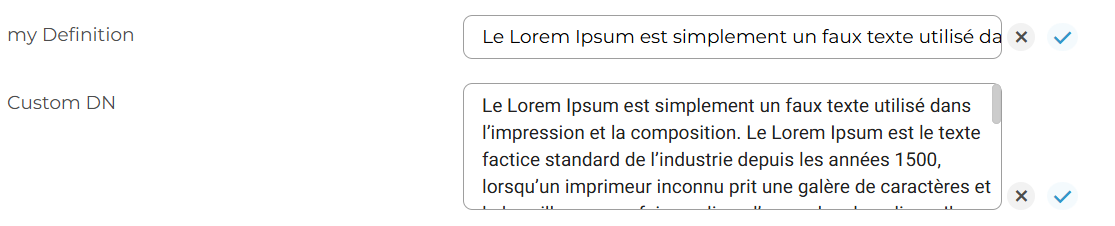
It can appear in two formats:
-
Single-line field (default)
-
Multi-line field (when configured)
Multi-line configuration
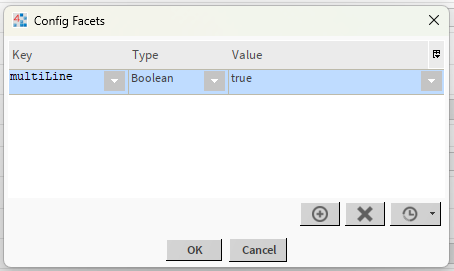
To enable multi-line mode, the corresponding String Slot Definition must define the multiLine facet and set it to true in Niagara.
In the Tridium Workbench:
-
Open the Ticket Template
-
Select the relevant String Slot Definition
-
In the Property Sheet, open Facets → Edit
-
Add the following facet
multiLine -
Validate with OK
When this facet is present, the field is displayed using MultiLineStringFE. If the multiLine facet is set to false (or is not defined), the field is displayed as a standard StringFE.
In multi-line mode, the field automatically expands up to 4 lines.
Beyond that, a vertical scrollbar appears, allowing the user to scroll through the content without increasing the field’s height.
How It Works
-
The field is editable if the user has the required permissions.
-
If the field is read-only, it appears greyed out and cannot be edited.
-
After entering or editing text:
-
✅ confirms and saves the change.
-
❌ cancels the change and restores the previous value.
-
Display
-
The field always shows the current text value.
-
In multi-line mode, the field adapts its height based on the content (up to 4 lines).
Use Cases
StringFE is ideal for:
-
Adding descriptions, comments, or detailed input.