
Description
The TicketMapperFieldEditor is a FieldEditor used in
-
TicketImport (on the TicketMapper Component)
-
TicketExport (on the ResponseTicketMapper Component)
-
TicketRecipient (on the TicketMapper Component)
The aim of this FieldEditor is to allow you to Create, Update or Archive a Ticket from different bases.
-
For the TicketImport and TicketExport, you will be able to parse an HTTP Response.
-
The TicketRecipient will parse an alarm.
Architecture
The TicketMappers are composed of two parts:
-
The first part is the Header.
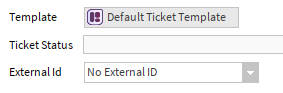
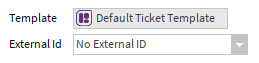
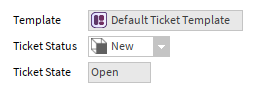
-
The second part is the Config
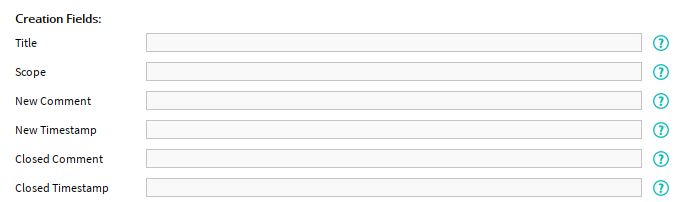
Header
-
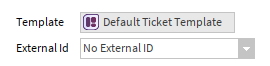
Template: Allows selection of the template to use. Currently, only the DefaultTicketTemplate is available. Additional templates will be introduced in future releases. Changing the selected template automatically updates the Config section.
-
TicketStatus: The TicketStatus of the Ticket
-
TicketImport: The SFormat enables targeting any existing status.
-
TicketRecipient: The dropdown displays only statuses for which the toArchive flag is set to False.
-
-
TicketState: Display the TicketState of the Ticket.
-
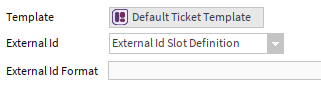
ExternalId: Allows selection of an ExternalId (optional). When an ExternalId is selected, an additional slot is displayed, enabling configuration of the SFormat used to define the ExternalId format.
Config
Each Mapper has one Config which allows you to extract a value though an SFormat.
The Only exception is the TicketImport which can contain up to three Configs.
TicketImport Mapper’s Configs
By defaut the TicketImport Mapper has only one Config, it’s prefixed by the “Default Fields” Label.
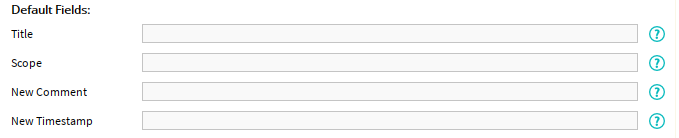
But you can also add a single UpdateConfig and/or a single ArchiveConfig from the palette (in the TicketMappers folder). Simply drag and drop them on the TicketMapper. To display them, you will have to refresh the view.
Having different Configs allows you to extract different values depending on the Context.
Depending on the imported Ticket and the Tickets present in the station, the ImportTicket will have a different dehaviour.
Here is the table for each case:
-
Initial State: Describes the imported ticket and existing Tickets before import
-
Imported Ticket Status: The TicketState of the imported ticket.
-
Ticket Space: Presence or absence of a ticket with the same ExternalId in the Ticket Space
-
Ticket Database: Presence or absence of ticket(s) with the same ExternalId in the Ticket Space
-
-
Ticket Importer: Defines the action and tool used for import
-
Behaviour: Defines the TicketImporter’s action.
-
Used Config: Defines the priority config. Defaults if absent.
-
-
Result: Describes existing Tickets after import
-
Ticket Space: Presence or absence of a ticket with the same ExternalId in the Ticket Space. The refresh symbol indicates an updated ticket.
-
Ticket Database: Presence or absence of Ticket(s) with the same ExternalId in the Ticket Space. The refresh symbol indicates an updated ticket.
-
|
Initial State |
Ticket Importer |
Result |
||||
|
Imported Ticket State |
Ticket Space |
Ticket Database |
Behaviour |
Used Config |
Ticket Space |
Ticket Database |
|
Open |
❌ |
❌ |
Creates an Open Ticket |
Default |
|
❌ |
|
Open |
❌ |
|
Creates an Open Ticket |
Default |
|
|
|
Open |
|
❌ |
Updates the Open Ticket |
Update |
🔄 |
❌ |
|
Open |
|
|
Updates the Open Ticket |
Update |
🔄 |
|
|
Open |
❌ |
|
Creates an Open Ticket |
Default |
|
|
|
Open |
|
|
Updates the Open Ticket |
Update |
🔄 |
|
|
Closed |
❌ |
❌ |
Creates a Closed Ticket |
Default |
❌ |
|
|
Closed |
❌ |
|
Updates the Closed Ticket |
Archive |
❌ |
🔄 |
|
Closed |
|
❌ |
Updates and Closes the Ticket |
Archive |
❌ |
🔄 |
|
Closed |
|
|
Updates and Closes the Ticket |
Archive |
❌ |
🔄 |
|
Closed |
❌ |
|
Updates the Closed Ticket |
Archive |
❌ |
🔄* |
|
Closed |
|
|
Updates and Closes the Ticket |
Archive |
❌ |
🔄 |
* The Closed Ticket with the most recent CreationDate is updated.
Available Slots
The configuration includes three categories of slots:
-
Frozen Slots:
These correspond to the frozen slots defined in the ticket (Title and Scope). -
Status Comment + Timestamp:
For each TicketStatusValueDefinition defined in the template, a pair of slots slots is created consisting of:-
a Comment
-
a Timestamp
-
-
Dynamic Slots:
These include all dynamic slot definitions added through the TicketTemplate.
Here is the table with the different slots available in each Config.
|
Component |
Frozen |
Status Comment + Timestamp |
Dynamic |
|---|---|---|---|
|
TicketImport - Default Config |
Available |
Available |
Available |
|
TicketImport - Update Config |
Absent |
Available |
Available |
|
TicketImport - Archive Config |
Absent |
Available |
Available |
|
TicketExport |
Absent |
Absent |
Available |
|
TicketRecipient |
Available |
Available |
Available |
Excluded Slots
All the values that will be filled automatically are absent:
-
Name
-
Id
-
CreationDate
-
LastUpdate
-
ClosedDate
-
ResolvedStringSlotDefinition
Accepted Values
Depending on the Slot, there are up to three ways to fill a slot. You can either use the SFormat to
-
Create a value with the type used by the slot
-
Use a String value which will be converted into the correct type
-
Use a Numeric value which will be converted into the correct type
Some slot are optional, if you leave them empty a default value will be used.
Here is a table with each possible value for each slot.
|
Slot |
Type |
String Value |
Numeric Value |
Default Value |
|---|---|---|---|---|
|
Template |
- |
- |
- |
- |
|
Id |
- |
- |
- |
- |
|
Title |
linksperTicket:Title |
Any value |
- |
Empty Title |
|
TicketStatus |
linksperTicket:TicketStatus |
TicketStatusValueDefinition's name |
TicketStatusValueDefinition's ordinal |
- |
|
TicketState |
- |
- |
- |
- |
|
CreationDate |
- |
- |
- |
- |
|
LastUpdate |
- |
- |
- |
- |
|
ClosedDate |
- |
- |
- |
- |
|
Scope |
baja:Ord |
A valid Ord |
- |
DefaultScope |
|
Status Comment |
linksperTicket:Comment |
Any value |
- |
Empty Comment |
|
Status Timestamp |
baja:Abstime |
A valid ISO8601 date and time |
Millis since epoch |
01/01/1970 |
|
Abstime |
baja:Abstime |
A valid ISO8601 date and time |
Millis since epoch |
01/01/1970 |
|
ExternalId |
linksperTicket:ExternalId |
Any value |
- |
- |
|
ResolvedString |
- |
- |
- |
- |
|
SFormat |
btibCore:SFormat |
Any value |
- |
Empty SFormat |
|
StrictList |
linksperTicket:StrictList |
StrictListSlotValueDefinition 's name |
- |
|
|
String |
baja:String |
Any value |
- |
Empty String |
Invalid Values
Finaly here is the behaviour of the different mappers if
-
the SFormat is Invalid: The SFormat result is “null” or contains “err:”
-
the SFormat is valid but the result is invalid:
-
an invalid Scope (which doesn’t target a valid Component)
-
an invalid Date (A String which we cannot parse)
-
a StrictList with a value which isn’t present in the StrictListSlotDefinition
-
|
Slot |
Invalid SFormat |
Invalid Result |
|---|---|---|
|
Template |
- |
- |
|
Id |
- |
- |
|
Title |
Inserts the invalid Title |
No invalid Result |
|
TicketStatus |
Operation Fails |
Operation Fails |
|
TicketState |
- |
- |
|
CreationDate |
- |
- |
|
LastUpdate |
- |
- |
|
ClosedDate |
- |
- |
|
Scope |
Inserts the DefaultScope |
Inserts the DefaultScope |
|
Status Comment |
Inserts the invalid Comment |
No invalid Result |
|
Status Timestamp |
Inserts 01/01/1970 |
Inserts 01/01/1970 |
|
Abstime |
Inserts 01/01/1970 |
Inserts 01/01/1970 |
|
ExternalId |
Operation Fails |
No invalid Result |
|
ResolvedString |
- |
- |
|
SFormat |
Inserts the invalid SFormat |
No invalid Result |
|
StrictList |
Inserts the invalid StrictList |
Default StrictList |
|
String |
Inserts the invalid String |
No invalid Result |