
Default Ticket
Here is an example of a default ("out-of-the-box") ticket. For more details on each slot, refer to the Ticket documentation.
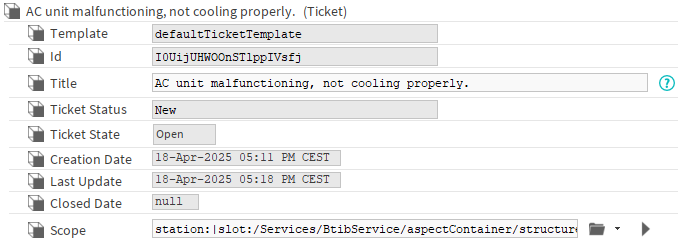
For each ticket, you can manually edit its frozen slots (change their flags, displayName, value) and add as many custom slots as needed. However, to ensure consistency across your system, the BtibTicketing module introduces the TicketTemplate (and its TicketConfig), allowing you to define and manage all ticket customizations in one centralized place.
Important: Frozen slots are mandatory and cannot be removed from the tickets. They represent essential data required for the ticket to function correctly.
Default Ticket Template
A default ticket template is created along with the Ticket Service. This template has a TicketConfig component that defines the properties of the tickets associated with this template.
Currently, only one ticket template can be defined and modified. In a future version, it will be possible to define multiple ticket templates.
Here, we will focus on the TicketConfig of the Template
Here is an example of a TicketConfig.
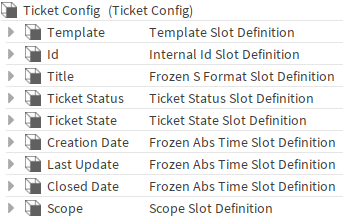
As you can see, each frozen slot in the Ticket is linked to a corresponding Slot Definition in the TicketTemplate.
Each of these Slot Definition will allow you to customize the associated Slot in the Ticket.
SynchronizeTemplate Action
Any modifications made to the template will only be applied to Tickets after triggering the “SynchronizeTemplate” action.
This action can only be triggered when
-
the ticket template status is ok
-
the updateStatus is equal to ‘OutOfSync’
While it is possible to manually customize your Ticket's slots, keep in mind that most of these modifications will be overridden/removed when the “SynchronizeTemplate” action is triggered.
Frozen SlotDefinitions
All tickets will necessarily have these different slots. Here is the list of Frozen Slot Definitions:
-
Template SlotDefinition, defining the Template Slot (which defines the ticket structure)
-
Id SlotDefinition, defining the Id Slot (to assure unique id)
-
Title SlotDefinition, defining the Title Slot (human short description)
-
TicketState SlotDefinition, defining the TicketState Slot (if the ticket is active or archived)
-
CreationDate SlotDefinition, defining the CreationDate Slot (timestamp of ticket creation in the station)
-
LastUpdate SlotDefinition, defining the LastUpdate Slot (timestamp of any change for ticket)
-
ClosedDate SlotDefinition, defining the ClosedDate Slot (timestamp of ticket creation in archive database)
These slot definitions share the same structure and follow the same logic.
Here’s an exemple, the Template SlotDefinition, which will define the Template Slot.

Customizing the Slot Display Name
Empty Value
Will set the default displayName of the slot (name of the ticket which is a human readable short id):

Text Value
Will set the given displayName to a fixed value.

SFormat
Allows you to use SFormat to define the DisplayName of your slot. The Base of the SFormat is the Slot Definition component.

BFormat
SFormat also supports BFormat, enabling the use of lexicon for localization.
Pay attention to the [%%] notation, it is mandatory if you want to keep the raw BFormat value.

(The keys and values in the lexicon might change)
Customizing the Slot Facets
In addition to the displayName and the flags, you can also customize the facets using the Facets slot.

Exercise caution when overriding facets — this can lead to unexpected issues.
Customizing the Slot Flags
Any flags you set on the definition will be applied to the target slot

The above example is intentionally a bad one —the transient flag does not save the value, and the template value is used internally by the system. The edit popup allows you to add or remove any flags, but be cautious: removing an existing flag may lead to unexpected behavior.
The main purpose of this feature is to be able to modify the operator, read only, summary, and confirmed action flags of ticket slots.
TicketStatusDefinition
The TicketStatusDefinition is based on a Ticket synchronization | Frozen SlotDefinitions .
Each Ticket includes a TicketStatus slot that defines its current status (which tracks ticket progress). Different domains may require different sets of statuses, and the TicketTemplate allows you to customize these to fit your specific needs.
In addition to defining the TicketStatus slot, each child StatusValueDefinition (available in the palette) will create three additional slots in the Ticket:
-
toStatus<ordinal> – The action allowing you to switch to this status.
-
status<ordinal>Comment – The Comment explaining the status change.
-
status<ordinal>Timestamp – The timestamp when the ticket entered this status.
A Ticket cannot be reverted to the status with ordinal 0, so the toStatus0 action will not be generated.
The <ordinal> refers to the ordinal in the TicketStatusValueDefinition. It is used internally to manage the deletion or addition of slots even if they have modified displayName.
This structure provides full traceability for each status transition in the ticket’s lifecycle.
For example, this Component with two StatusValueDefinitions:
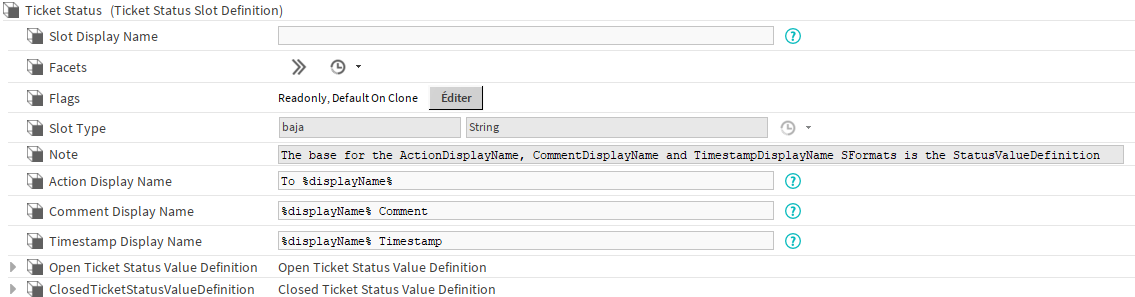
will create 5 slots:



Inherited Customization
As in theTicketFrozenSlotDefinition you will be able to customize the displayName, facets and flags of the TicketStatus slot.
Customizing the Slot's DisplayNames
In the same way as in Ticket synchronization | Customizing the Slot Display Name, you can customize the displayName value of your status slots using the ActionDisplayName, CommentDisplayName and TimestampDisplayName properties.
For exemple, synchronizing:
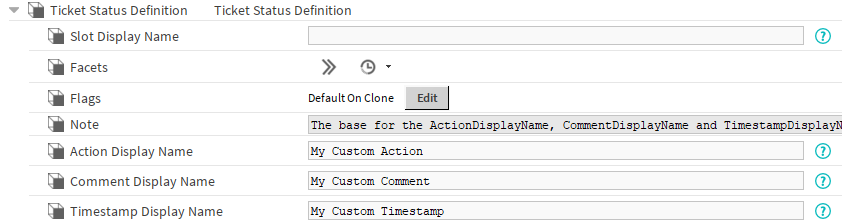
Will result in:

For simplicity, we used plain Text in the examples—however, this is not recommended. If you define multiple statuses using Text, all associated actions, comments, and timestamps will share the same display names, which can lead to confusion.
To ensure proper localization and clarity, use BFormat or SFormat instead. These formats allow you to dynamically generate display names and support internationalization through the lexicon.
TicketStatusValueDefinition
The TicketStatusValueDefinition allows you to further customize your created slots.

-
ValueDisplayName: SFormat used to define the value displayed in the Ticket
-
Flags: The flags applied to the 3 slots created by this component.
Currently, there are no slots specifically dedicated to customizing facets. However, keep the following in mind:
-
The
commentslot is created with themultiLine=truefacet by default. -
When running SynchronizeTemplate, slot facets will not be modified. This means you are free to customize them manually without the risk of your changes being overridden.
Customizing the Slots Values
Just like in Ticket synchronization | Customizing the Slot Display Name, you can customize the display value of your statuses using the ValueDisplayName property.

The module already includes some lexicon keys for the statuses:
-
TicketStatus.new=New
-
TicketStatus.1=To do
-
TicketStatus.2=In progress
-
TicketStatus.3=Validate
-
TicketStatus.closed=Closed
-
TicketStatus.4=Frozen
Customizing the Flags
Just like in Ticket synchronization | Customizing the Slot Flags , you can customize the flags of your created slots using the Flagsproperty.

TicketScopeDefinition
The TicketScopeSlotDefinition is based on a Ticket synchronization | TicketFrozenSlotDefinition.
Inherited Customization
As in the TicketFrozenSlotDefinition you will be able to customize the displayName, facets and flags of the Scope slot.
Ticket Views (and New Ticket Views) customization
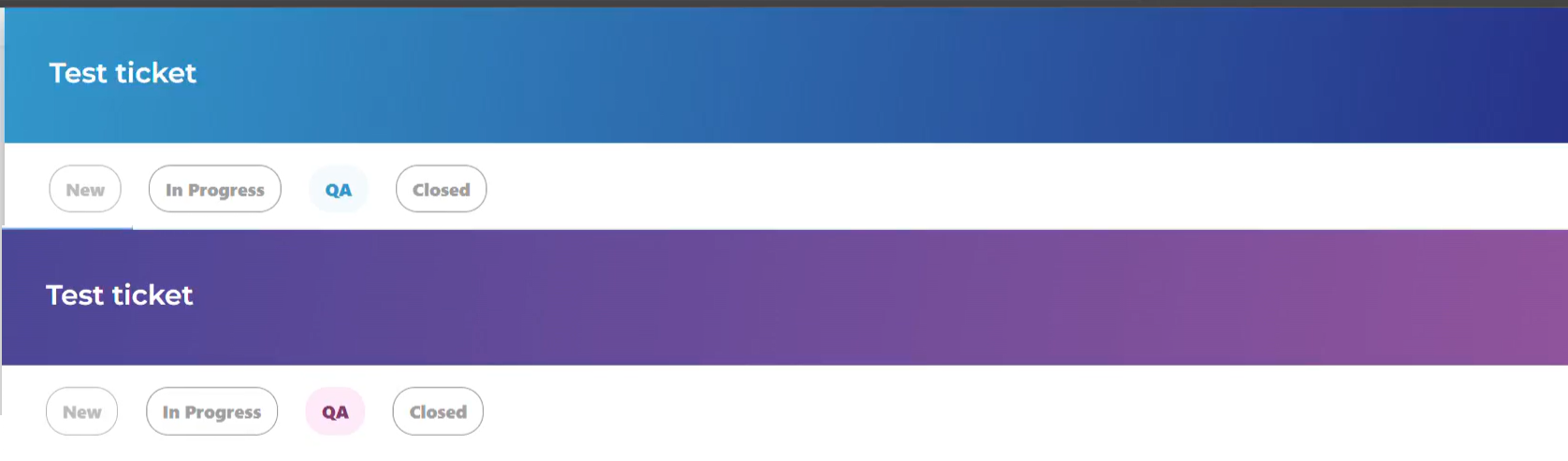
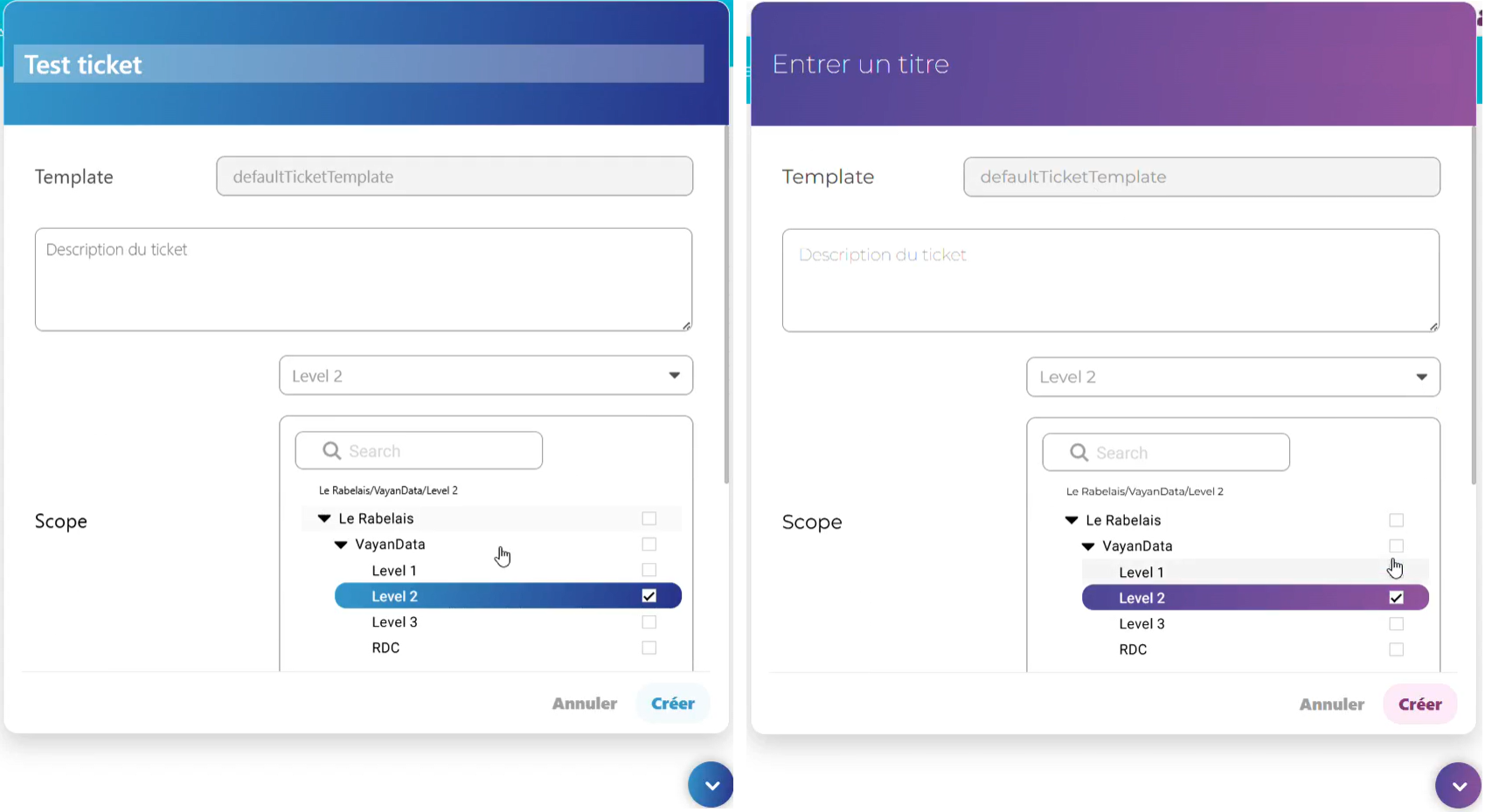
TODO Présenter les slots Web et NodePath
Filtering the components to which you can assign a Ticket
By default, you can only assign a Ticket to a Node or a Source (any Component with an InfoSource).
Using the predicates slot, you can apply additional filter.
Predicates syntax
There are two supported predicate syntaxes.
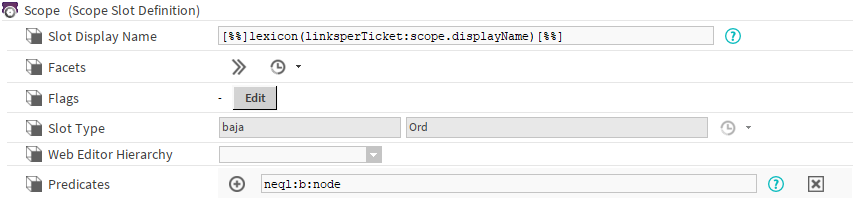
NEQL
You can write a neql to apply a filter. You will have to write the full neql including the scheme.
exemple: only Nodes
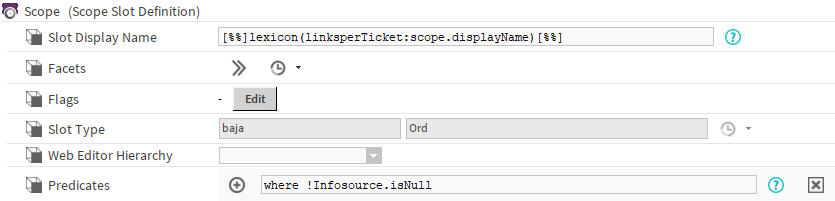
BQL where predicate
You can also use the “where“ predicate of a bql. Here you won’t have to write the full bql, only the where part is required (Writing the whole bql won’t work).
exemple: only Sources
Use SFormat
You can enhance your predicates using SFormat. The origin of the SFormat will be the source itself.
exemple: another way to target only Sources
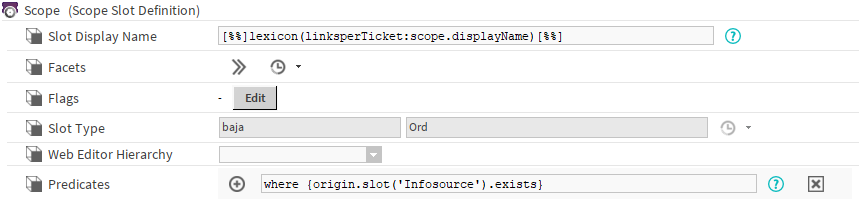
The base is a bql predicate in which we added some SFormat.
Use Multiple predicates
To prevent long or complex predicates, you can create multiple predicates.
exemple: Node or Source with the Equipment name or a name starting by Floor
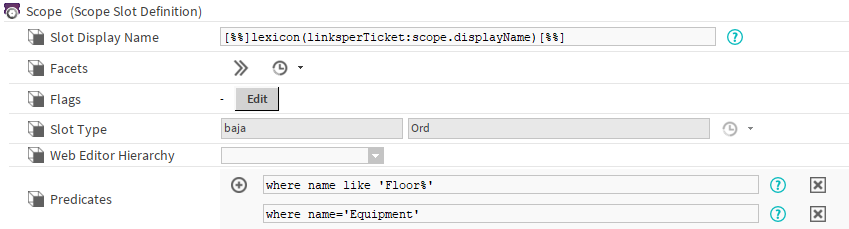
When multiple predicates are defined, an 'OR' logic is used — if any predicate matches, the ticket becomes assignable to your component.
Additionnal predicates rules
Empty value

If you leave an empty value, there is no additional filter.
If you have multiple predicates but one of them is empty, as one of your predicate return true, the other ones won’t be taken into account.
Syntax error
If there is a syntax error (invalid query, or invalid SFormat), you won’t be able to assign your Ticket.
If you have multiple predicates and none of them return true, you still won’t be able to assign your Ticket.
Customized Ticket Template
You can also add new SlotDefinitions to your Template. They are all avaible in the LinsperTicket palette:
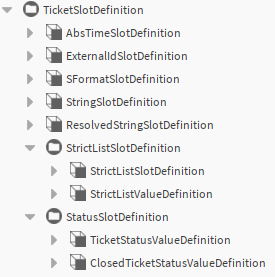
Adding a SlotDefinition to your template will create a new Slot in your Tickets. The type of the created slot is defined in the SlotType of the SlotDefinition.
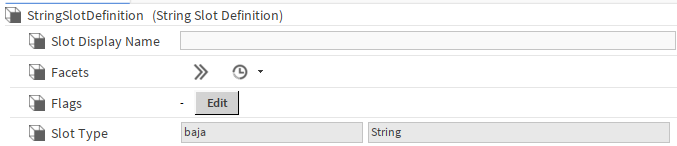
For example, here the String Slot Definition will create a String Slot.
Inherited Customization
As in the TicketFrozenSlotDefinition you will be able to customize the displayName, facets and flags of the TicketStatus slot.
AbsTimeSlotDefinition
The AbsTimeSlotDefinition will allow you to create an AbsTime slot and customize it.

ExternalIdSlotDefinition
The ExternalIdSlotDefinition will allow you to create an ExternalId slot and customize it. This type of property is designed to store ticket ids used by third-party systems.
Additional rights check on ExternalId
ExternalIds contain sensitive data, so you may want to apply additional access controls to this field.
You can remove one’s users write rights on an ExternalID by removing the write rights on the associated ExternalIdSlotDefinition.
For exemple, with the following configuration
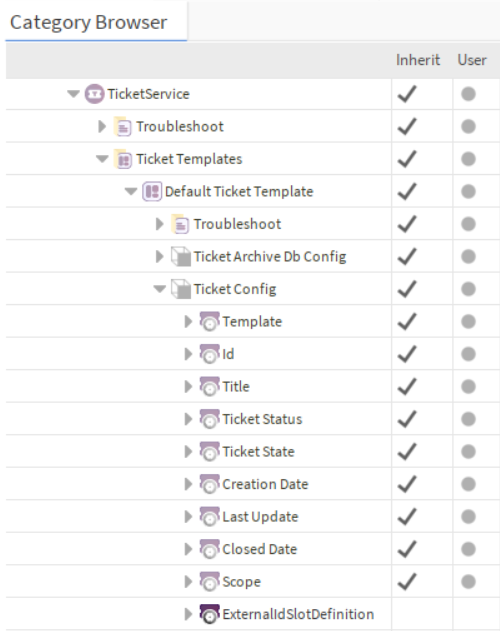
A User with the User role will be able to see the ExternalIdSlotDefinition but won’t be able to change it.

ResolvedStringSlotDefinition
The ResolvedStringSlotDefinition lets you create a String slot, customize it, and assign a value computed when the ticket is created.

Be careful, the value is only set during the ticket creation.
Synchronizing the template will not change the value.
If you want to refresh the values, use the forceResolveSlot action in the Template.
SFormatSlotDefinition
The SFormatSlotDefinition will allow you to create a SFormat slot and customize it. Its main purpose is to be able to use localizable texts in tickets.
The SFormat will be stored in its raw value but displayed or exported with its resolved value.

StrictListSlotDefinition
The StrictListSlotDefinition will allow you to create a String slot with a dropdown and customize it. You cannot write a custom value in this slot, only the values from the dropdown are allowed
The values present in the dropdown will be defined by the children StrictListSlotValueDefinition. Also, a User will only see the values on which he has the adequate write rights.
On template synchronization, if any StrictList slot in a open or archived Ticket is empty, the default StrictListValue will be set.

Default StrictListValue
In the Tickets, the StrictList slots will always have a value. On creation if there is no given value or if the value is invalid, the default StrictListValue will be set.
The Default StrictList depends on the user doing the action:
-
If there is an User (In the API or in the NewTicketView for example), the default value is the first value on which the User has the adequate write rights. If the user hasn’t got the write rights on any value, the default value will be the first one.
-
If there is no User (TicketRecipient, RestTicketImport or RestTicketExport for example), the default value is the first one.
StringSlotDefinition
The StringSlotDefinition will allow you to create a String slot and customize it.
