
A header represents is a part visible in all pages and located at the top (above the menu).
There are 4 ways for creating a header:
-
Use the add menu in the settings bar (at the top)
-
Drag&drop a card from the btibVision palette (among the list)
-
Drag&drop any component from the nav tree, which creates a ComponentViewer card
-
Drag&drop any px file from the nav tree, which creates a PxFileViewer header
Properties
Flex Widget Properties:
-
Flex Widget: The Id of the Flex Widget to use
-
The specific Flex Widget properties depending on the model of header
Design:
-
Height: The height in px
Advanced:
-
Display: Defines if the Header is hidden or not. It expects a SFormat condition
Add a Header
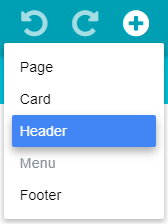
Click on Add button then Header.
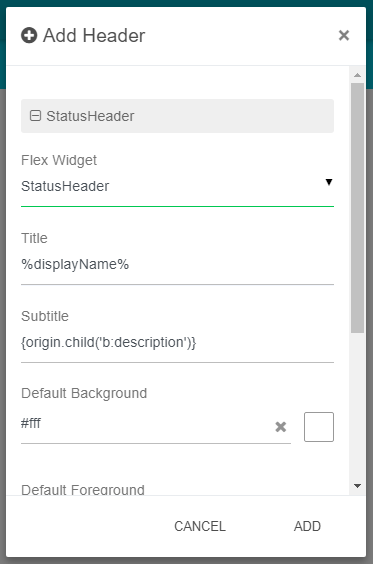
Fill in the modal that opened the required fields then click on Add.
You can add extra CSS in the design section of the header.
Example of the status header
Edit a Header
Click on Edit button on the top right of the Header.
Modify the required fields then click on Ok.
Delete a Header
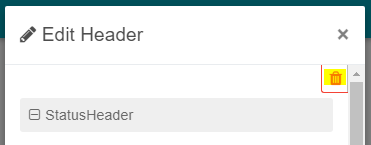
Open the Edit modal of the Header and click on the Delete button on the right top of the modal.
Then click on Yes in the confirmation modal.