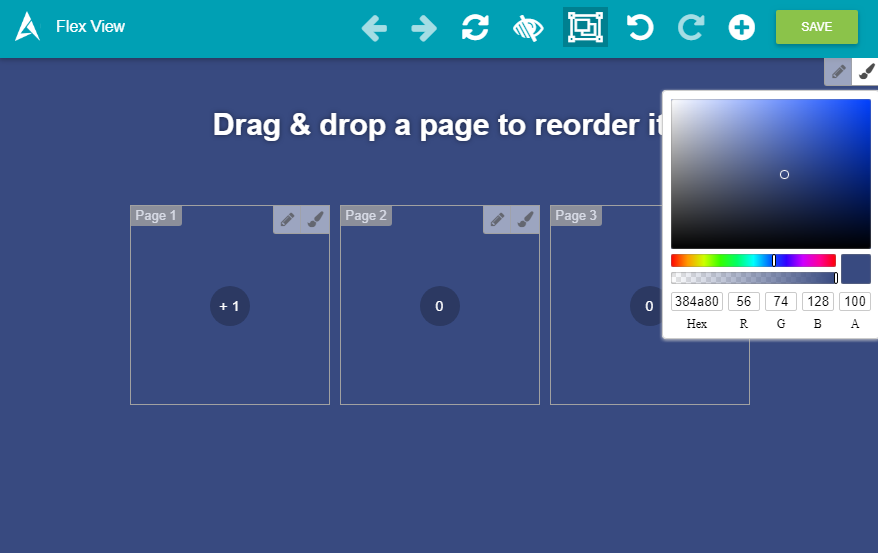
The Slider is the part containing the different pages below the menu and the header and above the header. You can define several properties for this part.
Switch to another Page
To switch from one page to another you can use Previous or Next buttons.

You can also change a Page with left and right arrows of the keyboard, or by swiping pages.
Edit the Slider
To edit the Slider you first need to access to the Perspective View.
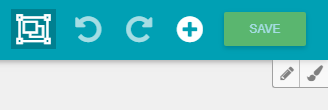
Then click on the Edit button at the top right of the view. A modal will appear:
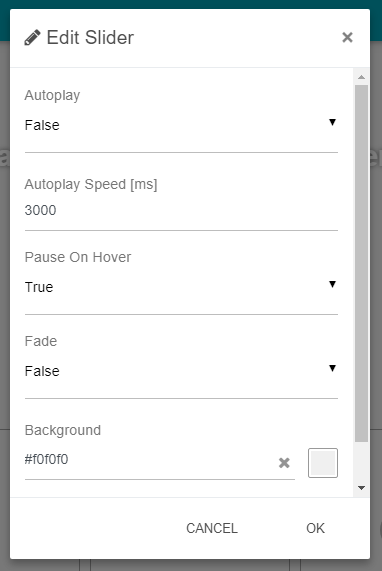
Properties
-
Autoplay: Whether to switch from one page to another automatically in an animated mode
-
Autoplay Speed: The time to spend on each page. It's common to all pages.
-
Pause on Hover: Whether to stop sliding when the mouse pointer is inside a page zone
-
Fade: By default, the slider uses a horizontal sliding effect. Set this property to true to get a fade transition effect
-
Background: Background color of the slider
Note. You can modify the background directly by clicking on the Background button near the Edit Button.