
Now you have your MongoDb database configured successfully, in this section you will see how to connect Niagara devices/points to a MongoDb database.
Set up the connector
-
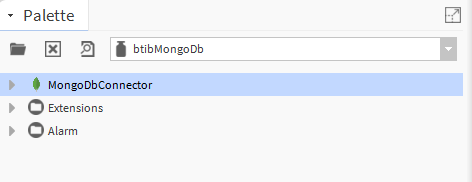
Open the MongoDb Connector palette.
-
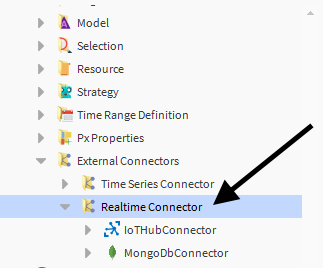
Drag and drop the MongoDbConnector to Services > Btib Service > External Connectors > Realtime Connectors folder.
-
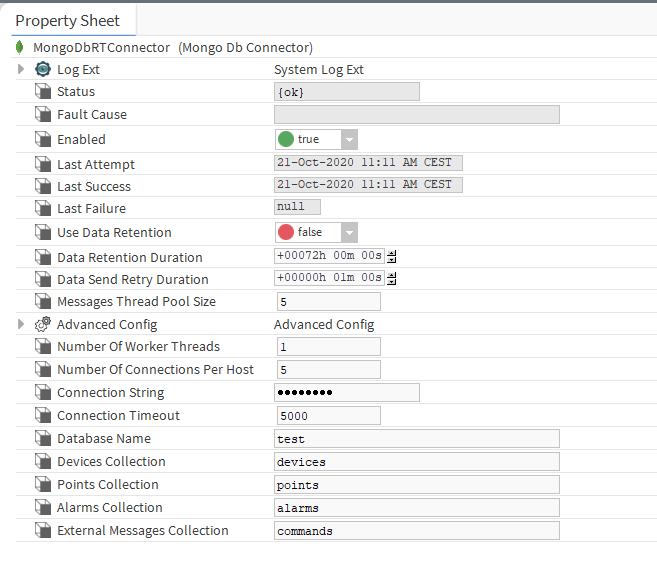
Double click on the connector fill-in the connection information then hit save.
Set up a Device
-
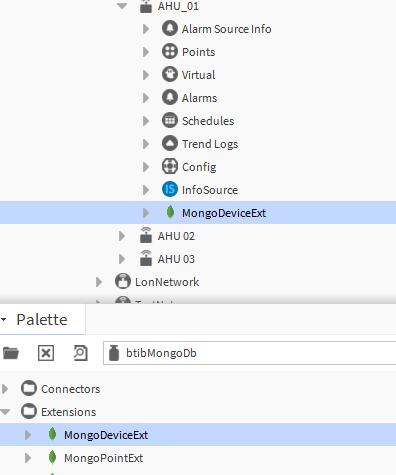
From the btibMongoDb palette, drag and drop the MongoDeviceExt to a device or anything that represents a group of points (it might be a Node, a folder etc.)
-
If you have only one connector the extension will pick it up automatically.
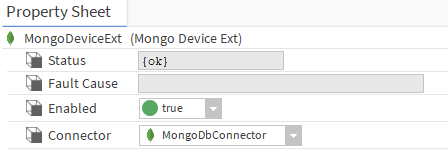
-
if you have multiple connectors, select the one in the list and hit save
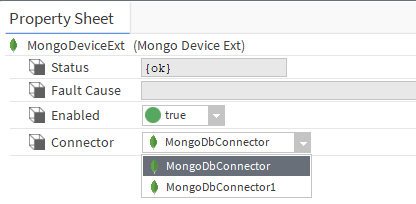
-
Go to the database and you should see the devices collections created with the document and associated tags.
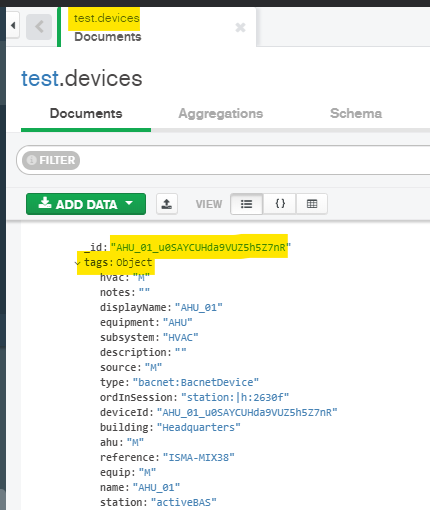
Set up a point
-
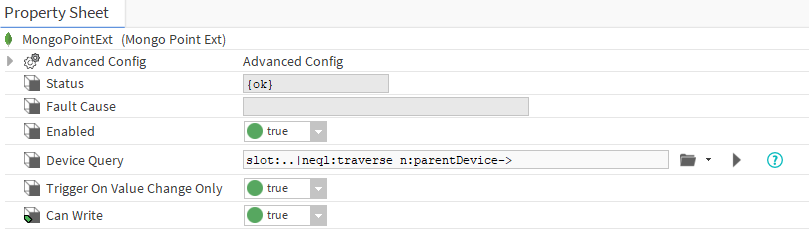
From the btibMongoDb palette, drag and drop the MongoPointExt to a point.
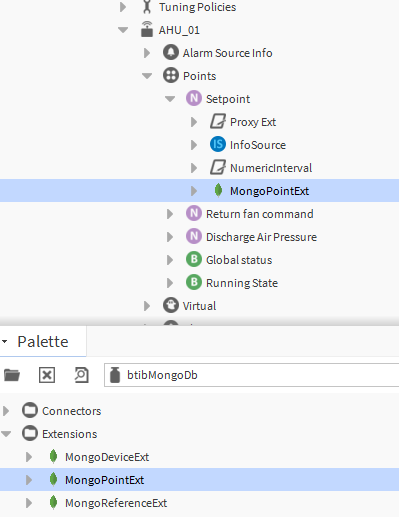
-
Edit the device query to point to your device which contains the Device Extension. By default, the extension will look for the parent device but you can change it to use any other component that contains a MongoDevice extension.
-
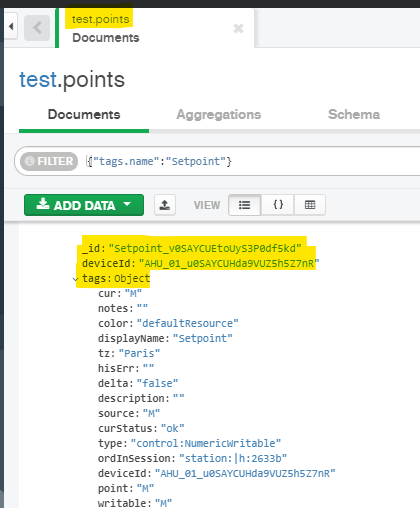
Go to the database and you should see points collection created with the document and associated tags.
Setup a reference
-
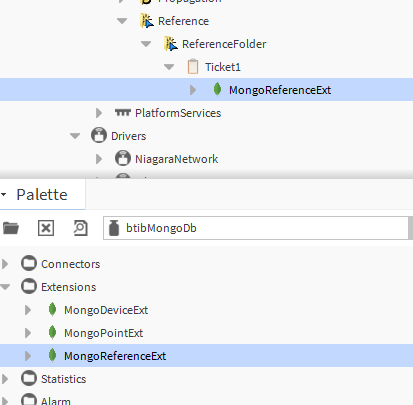
Go to the palette and drag&drop.
-
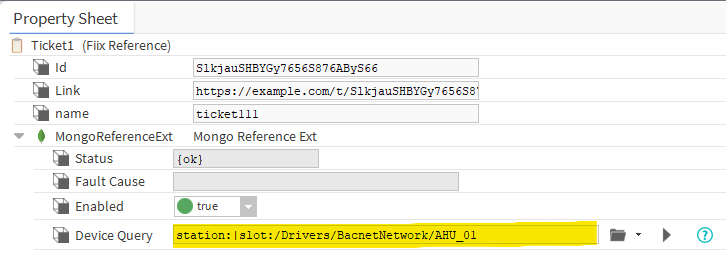
Modify the query to point on a device.
-
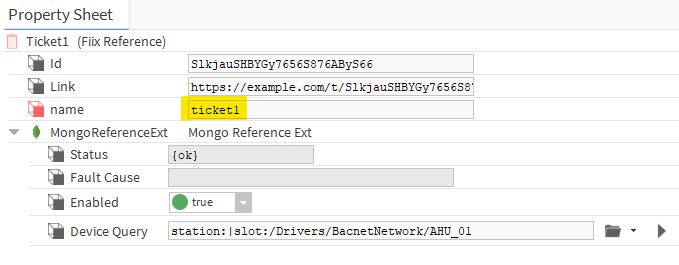
Change a property on the reference.
-
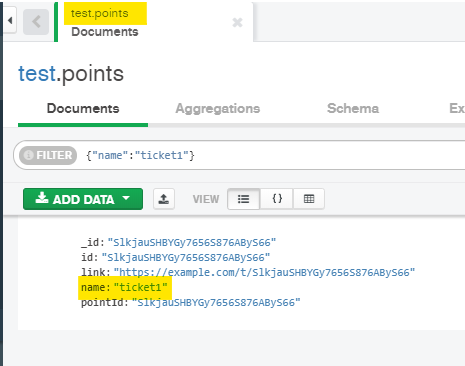
You should see the new value populated in the database.
Next Step
Step 3 Send messages to MongoDB from Niagara