
You can easily transmit Niagara alarms in IoTHub. IoTHub doesn't have a native representation of alarms, this is why we use a dedicated devices which collect all the alarm events
Adding the IoTHubAlarmRecipient
-
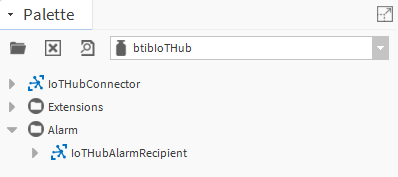
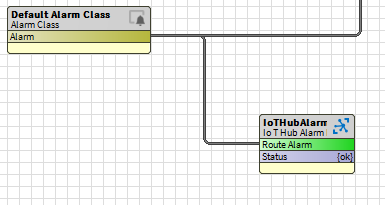
Open the btibIoTHub palette and drag and drop the IoTHubAlarmRecipient to the AlarmService.
-
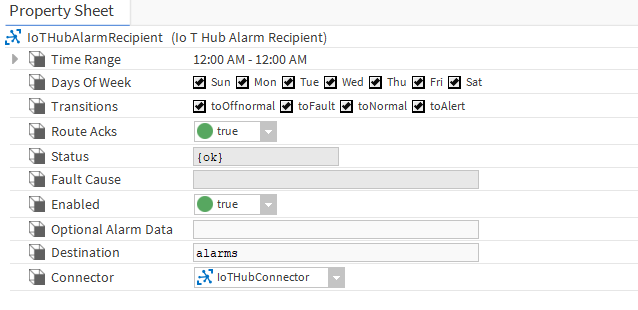
Fill the optional alarm data you want to add to the document which will represent each alarm record. Example: msgTxt, building, floor...
-
Give a name to the device which will be dedicated to alarms in the destination field. (IoTHub doesn't have a native representation of alarms, this is why we use a dedicated devices which collect all the alarm events).
-
Select the connector if you have multiple IoTHub connectors in your station
-
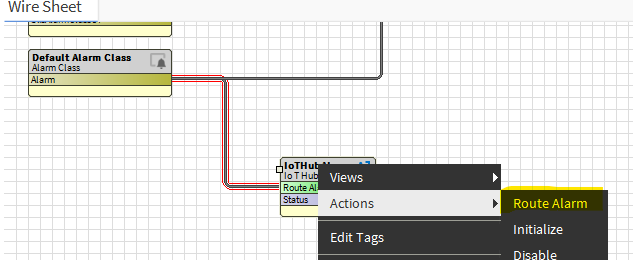
To test right click on the recipient the route alarm.
-
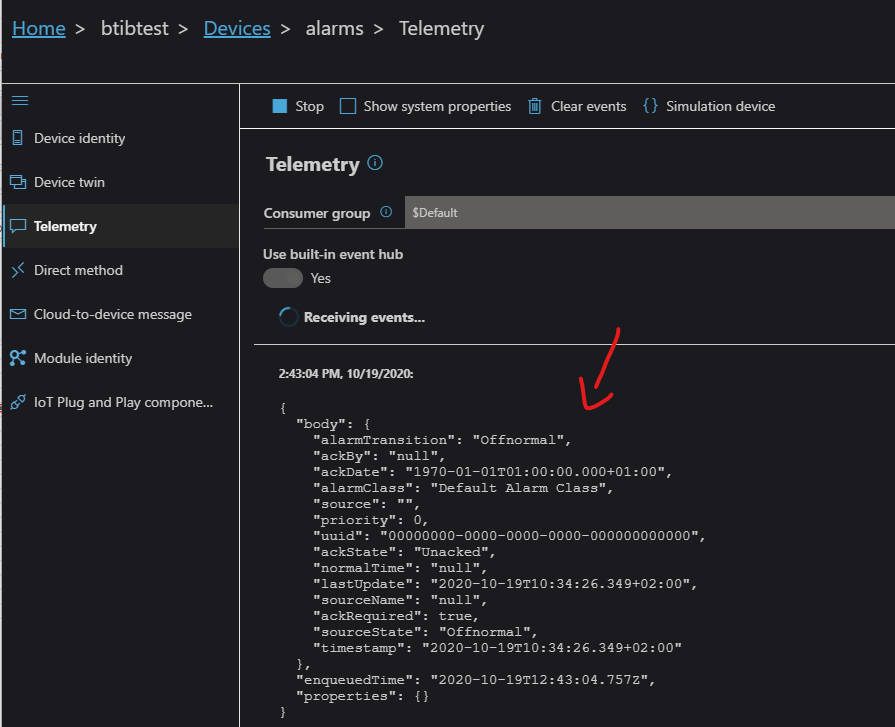
The you should see the alarms on the alarms device created.
Next Step
Step 5 Send commands from IoTHub to Niagara