
Used as
-
Card
Summary
This card allows to show a website in it.
Warning: some websites deny access in iframe, which is the technology used in this card. Don't try google.com for example
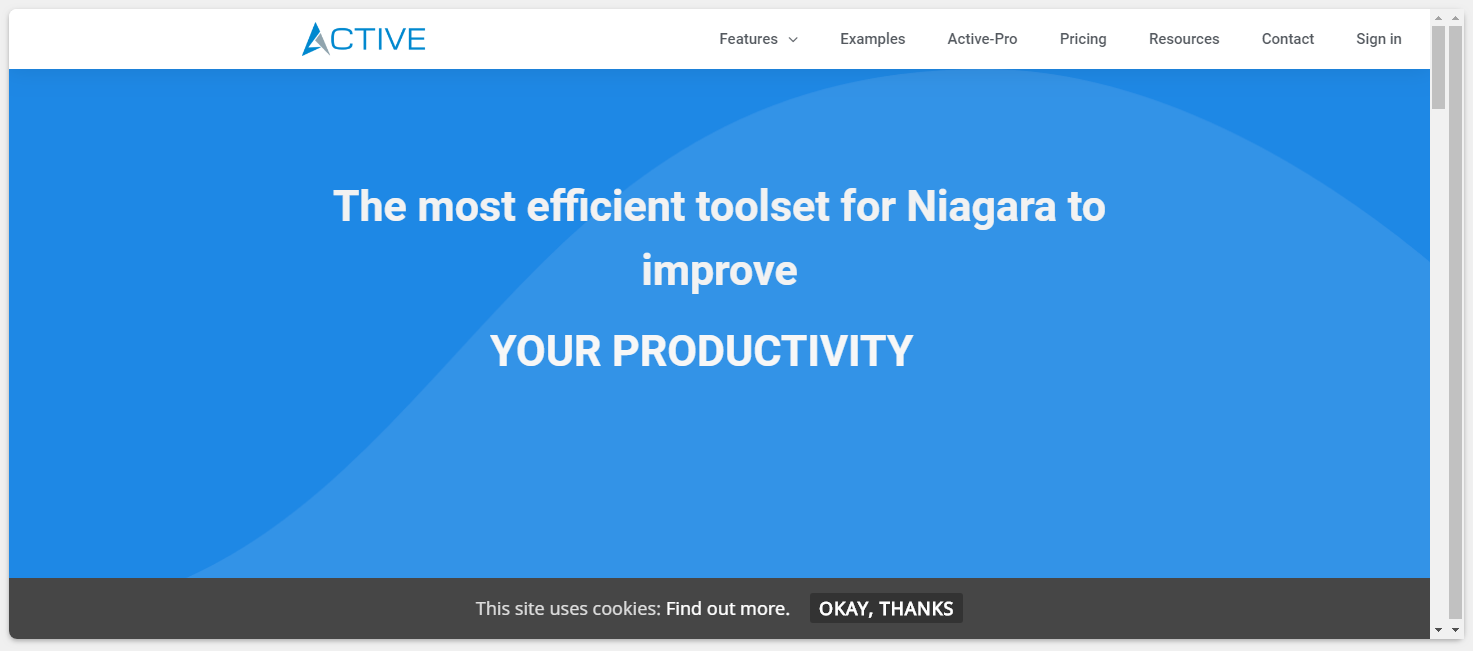
In the following example, we will try to display a Card from a second station that is running in the port 8443.
By default you will have:
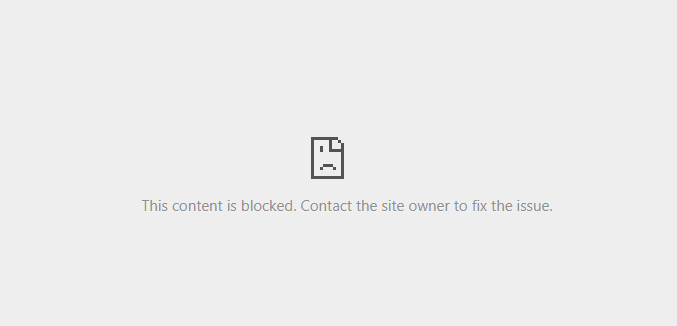
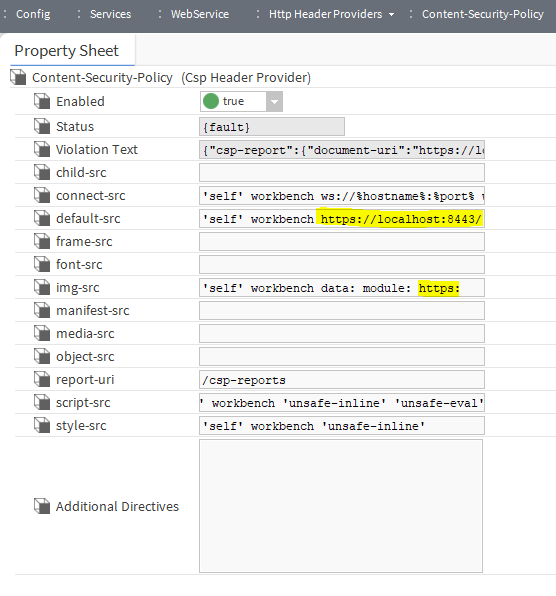
Since we are using Iframe technology, you may need to configure your Content-Security-Policy in WebService/Http Header Providers
Add your URL under the connect-src and default-src sections. Add https: value in img-src to get images from the URL if it has https certificate (like beelow):
A Niagara Station only allows to be embedded into an iFrame from the same origin. You can change it in X-Frame-Options, but it's not recommended.
Instead of it, go in the Content-Security-Policy of the Niagara Station you want to embedded and add a frame-ancestors. The value is the origin of the first station:
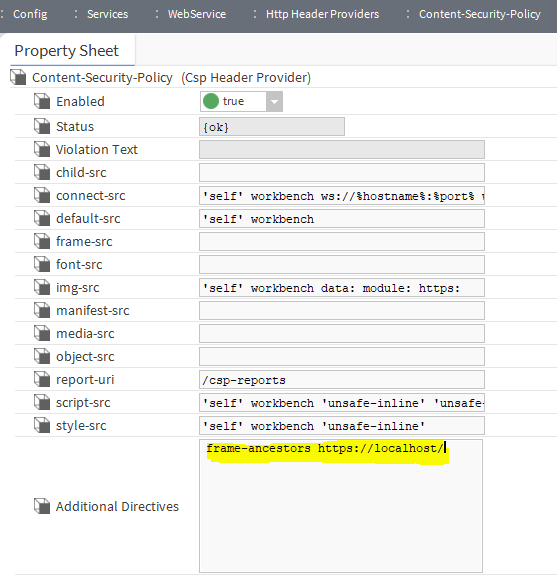
Then you will be able to display the iFrame.
Implementation
-
Add a card from the settings bar, and choose in the list WebBrowser
-
Fill the url of the website you want to display
Flex Widget Properties
-
Url: The url of the website to display
-
Refresh: Period to reload the page automatically